OpenVPN Connect for Android

OpenVPN Connect is the official, free mobile app for setting up a secure VPN connection on your smartphone or tablet.
Put simply, it is your personal "armored tunnel" on the internet. It hides which websites you visit and protects your passwords and messages from prying eyes.
Why do you need OpenVPN Connect?
- Protection on public Wi-Fi: When you connect to free Wi-Fi in a café, on the subway or at the airport, hackers can easily intercept your data. OpenVPN encrypts all your traffic, so even if someone tries to steal it, all they will see is a meaningless jumble of characters.
- Remote work: Most companies use this very app so their employees can securely connect to the work network from home or on business trips.
- Access without borders: The app helps you use the internet safely and anonymously by hiding your real location.
How it works (an important difference)
Unlike many popular VPN apps, where you simply download the program and tap a huge "Turn on" button, OpenVPN Connect is just a "player" that needs a "cassette".
You will need a configuration file (it usually ends in .ovpn).
How to use it: Just download this file to your phone, open it in OpenVPN Connect, enter your username and password (if required) and flip the toggle on. Done!
Key advantages of the app
- No ads. The app is completely free, with no pop-up banners or hidden subscriptions.
- Official and reliable. It is made by the same team that developed the OpenVPN technology itself (used by half the world). That is a guarantee of security.
- Easy on the battery. The app is well optimized for mobile phones, so it won't drain your battery in the background.
- Works on a poor connection. If you are on a train and the signal keeps dropping, the app will automatically and seamlessly reconnect as soon as the internet is back.
How to set up OpenVPN Connect on Android
You can download the OpenVPN Connect app here: https://
After installing, open the app and take a look at the interface. The app version at the time of writing is 3.7.1 (10568).
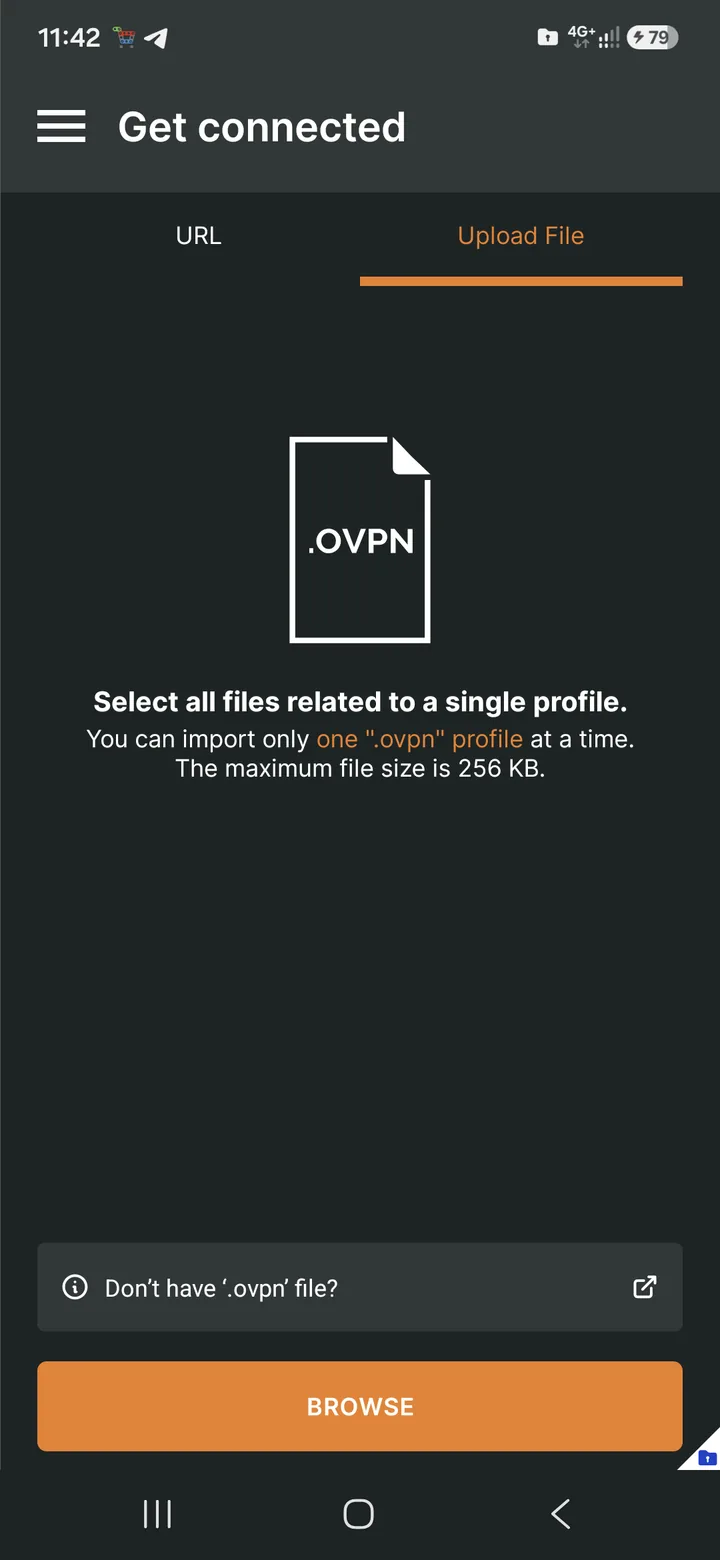
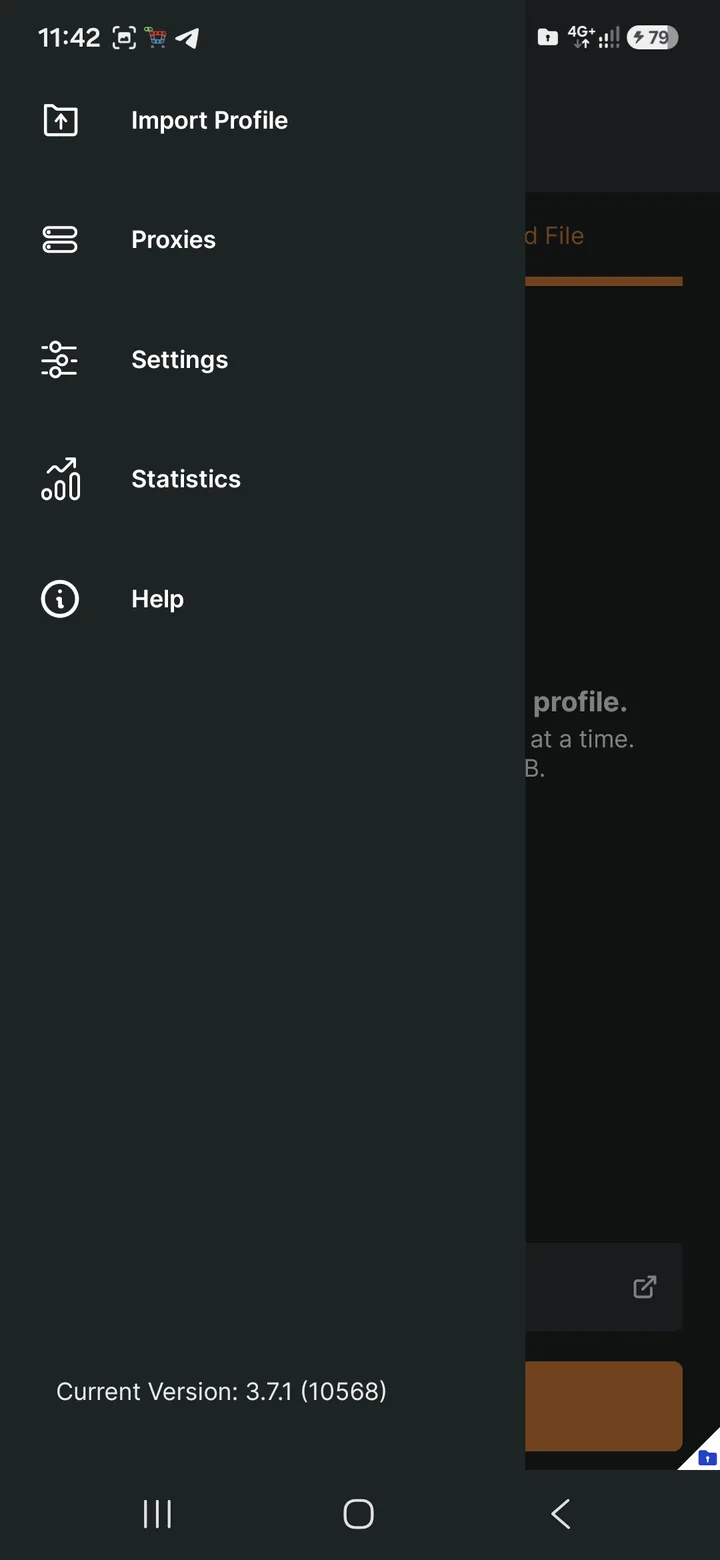
To add an active configuration to the client, tap the "BROWSE" button.
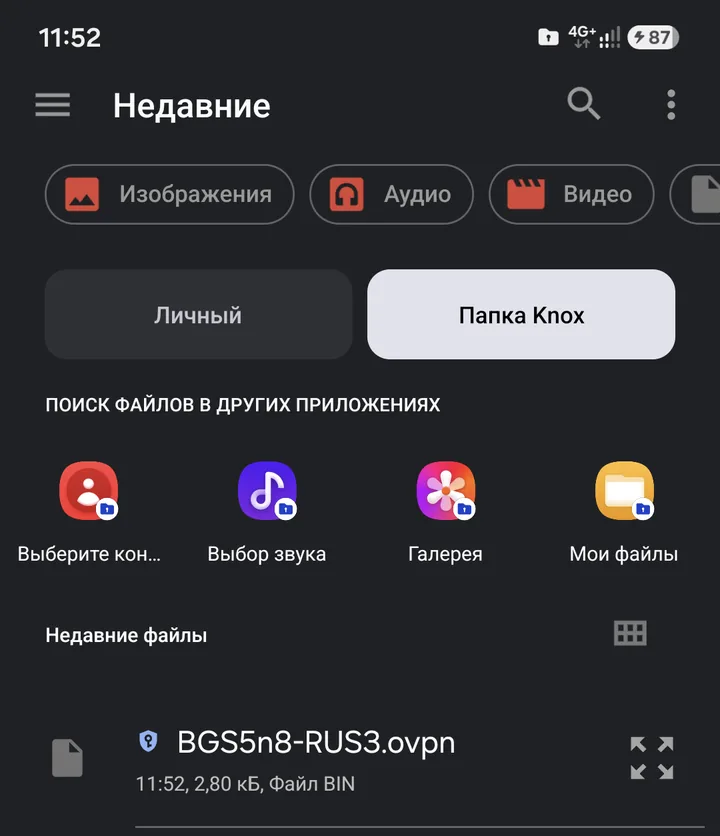
As an example, I'll use the Russia, Moscow location. Select the *.ovpn file (BGS5n8-RUS3).
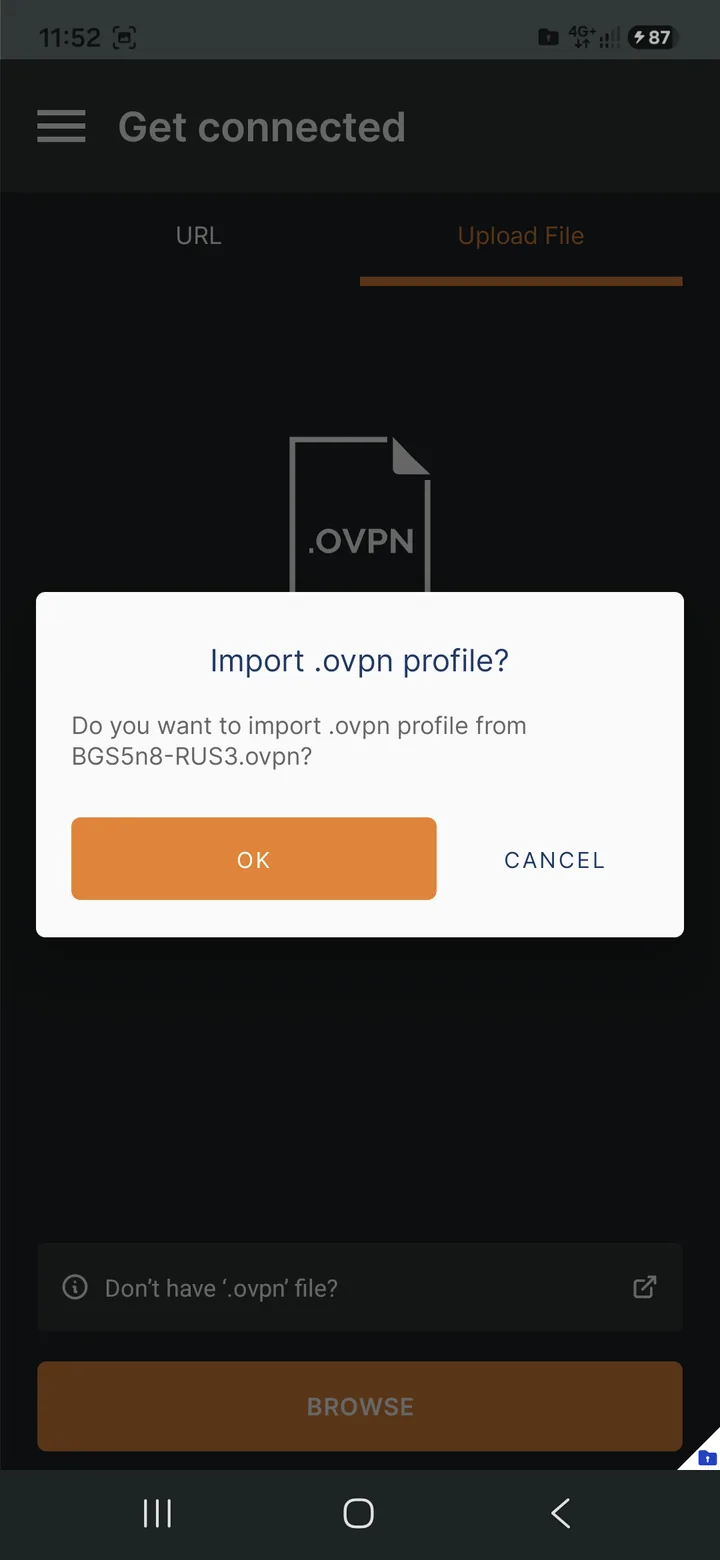
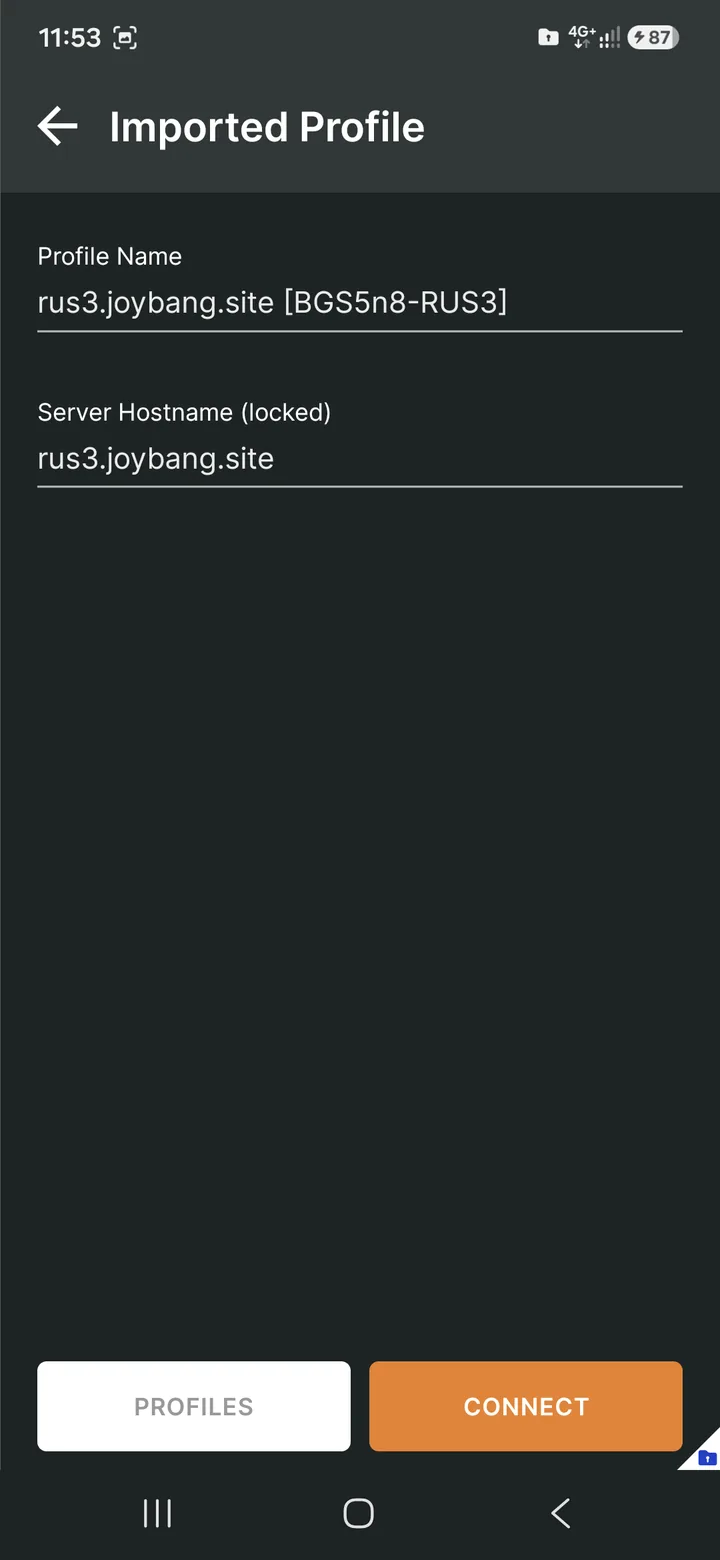
Confirm the import with "OK". Then tap "CONNECT". Accept the connection request (system prompt -> OK).
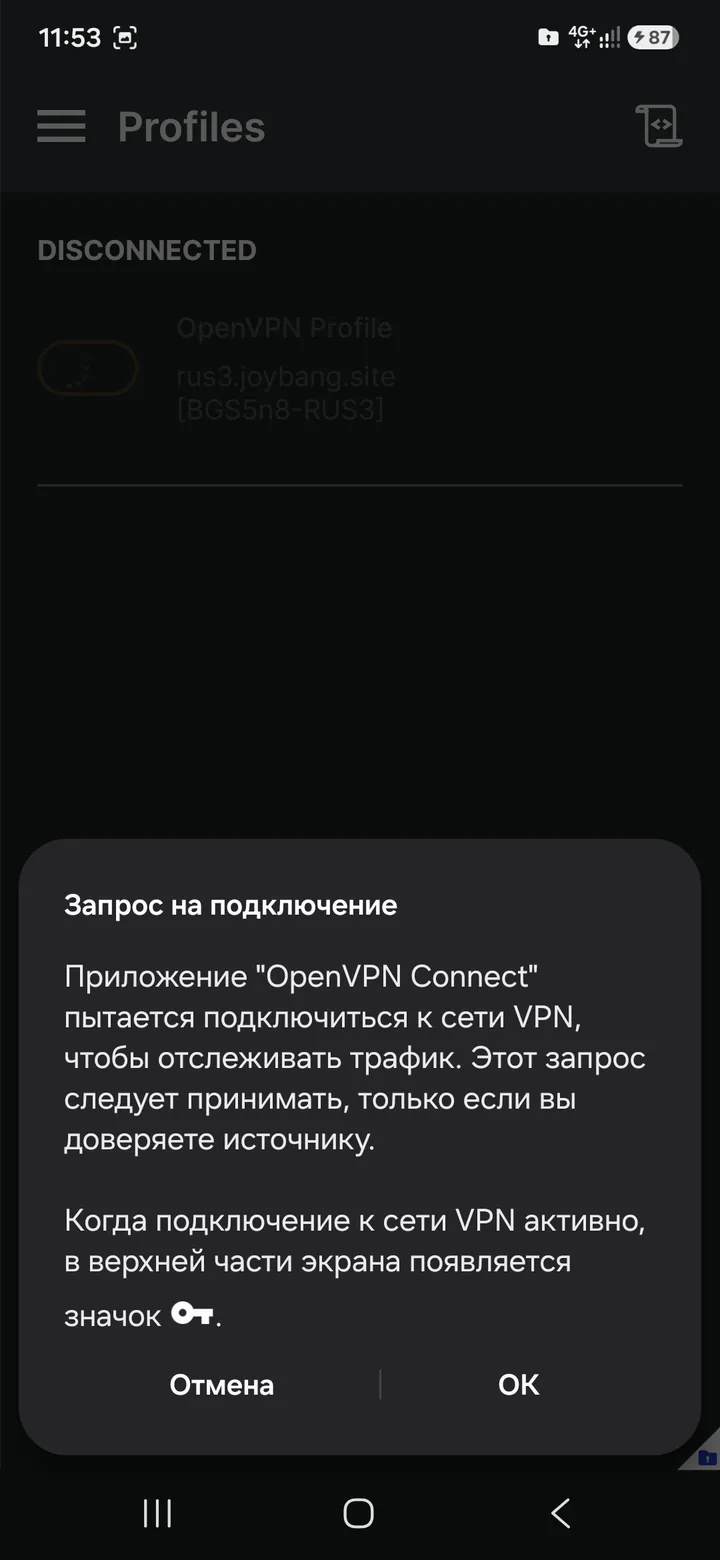
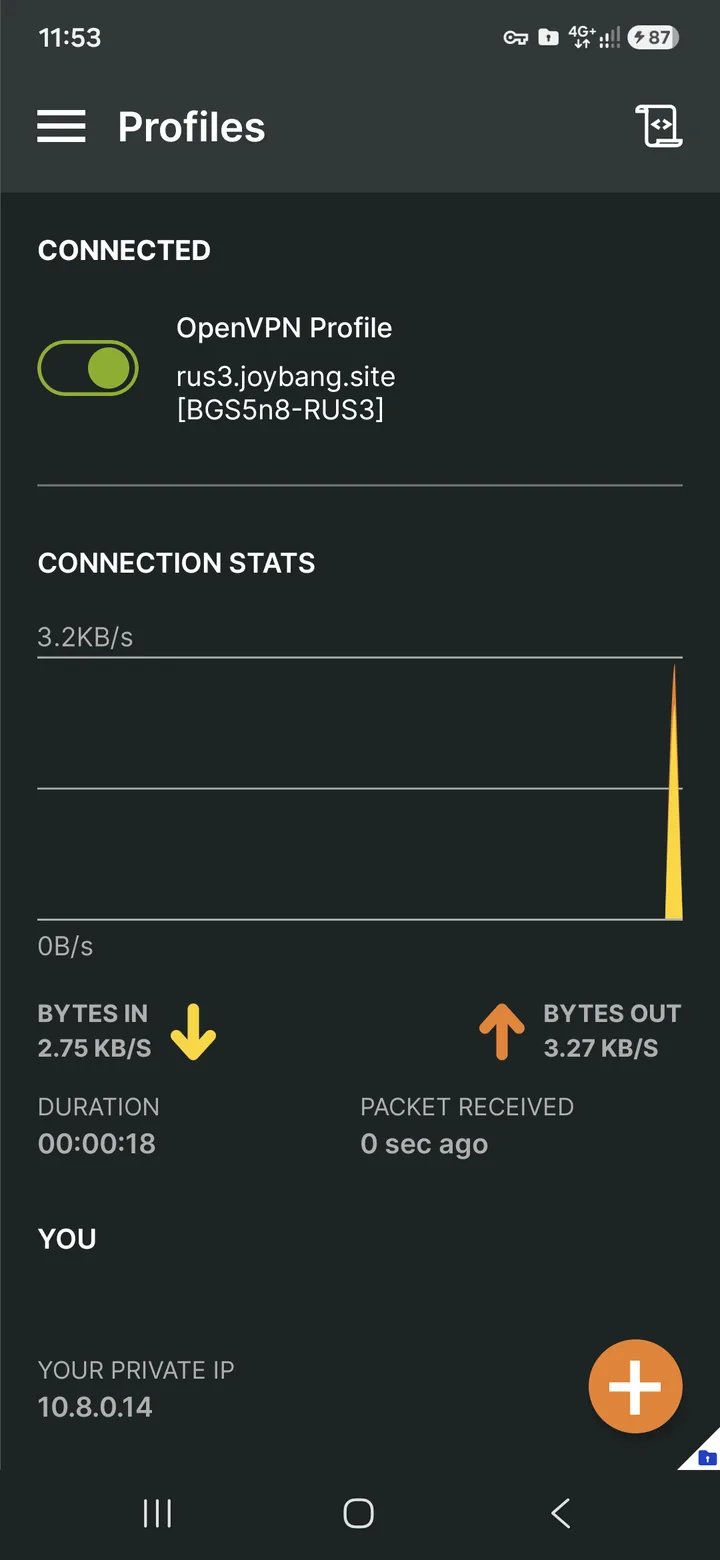
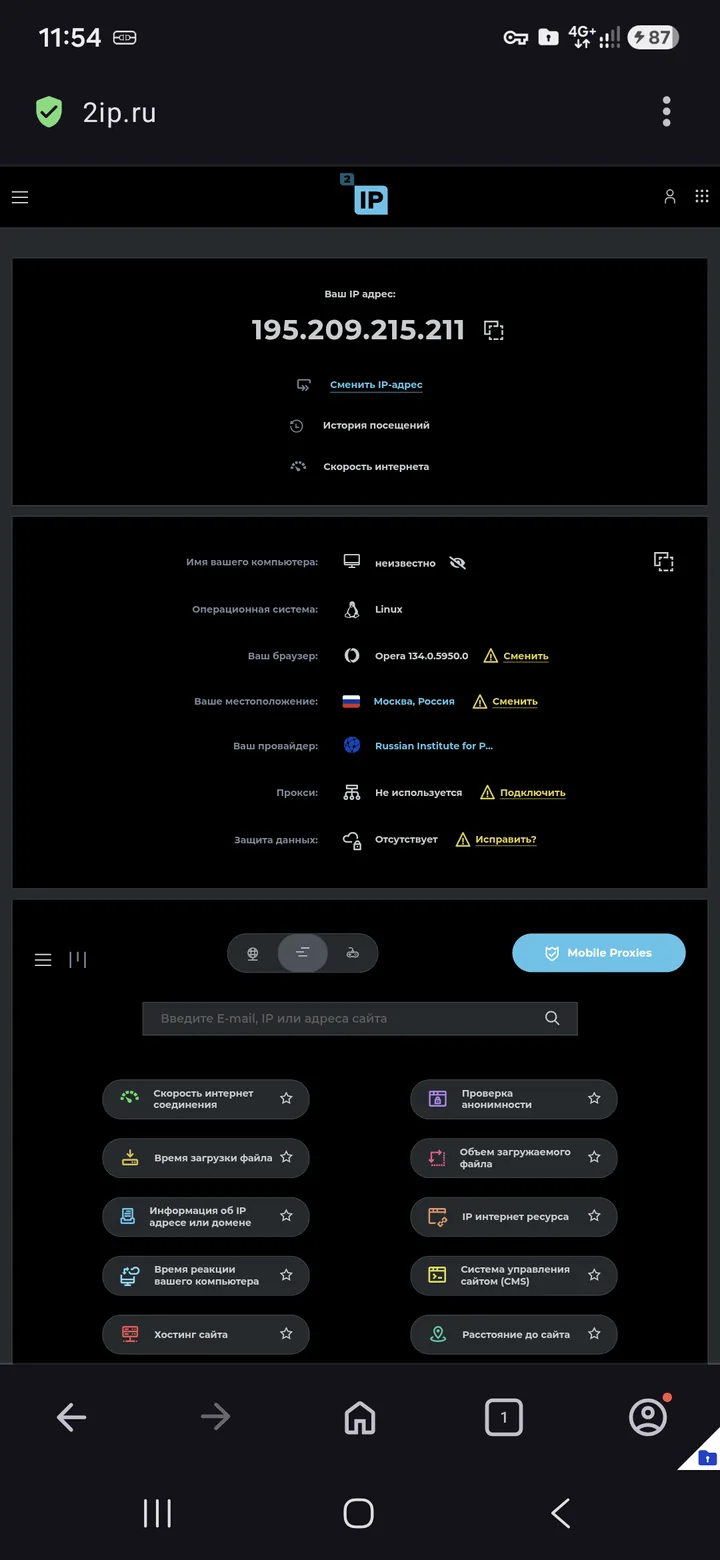
To check, I'll open 2ip.ru and look at the IP address.
To manage the connection, use the OpenVPN profile toggle (on/off). Enjoy!