INCY for Android

INCY is a modern, user-friendly VPN app built for fast, secure and private internet access. The app's motto is “A VPN that doesn't get in the way of your work”.
Put simply, it is an advanced VPN app that helps you get around even the toughest modern blocking (when ordinary VPNs no longer work).
Here are the main features that matter to everyday users:
- Bypassing strict blocking: INCY supports modern obfuscation technologies (VLESS, Reality, Hysteria2, Trojan and others). To your provider, your traffic looks like an ordinary, permitted connection, which makes it very hard to block.
- High speed: Thanks to newer protocols (such as Hysteria2), the app delivers lightning-fast connections so you can watch videos and download files without stalls.
- Strict privacy: The app keeps no logs of your activity (a “zero logs” policy). No one will know which websites you visited. It also uses bank-grade encryption to protect your data even on public Wi-Fi networks.
- Smart features (protection and convenience): Split tunneling (Split tunnel): You can set the VPN to work only for blocked websites (for example, Instagram), while your banking apps or Gosuslugi connect directly over your regular Russian internet. Kill Switch: If the VPN connection drops unexpectedly, the app instantly cuts off internet access so your real IP address doesn't “leak”. DNS protection: Protects against hidden leaks of information about which websites you request.
- Versatility: The app is available on 6 platforms, including smartphones and computers (you can download it from the App Store, Google Play or GitHub).
Who is INCY for? It's ideal for anyone tired of slow VPN services that keep disconnecting. INCY works as a client: you load a configuration (key) from a modern VPN provider or your own server into it and get stable, secure internet that censors can't see, without unnecessary hassle.
How to connect INCY on Android
You can download and install the INCY app here: https://
This is what the app looks like when it opens.
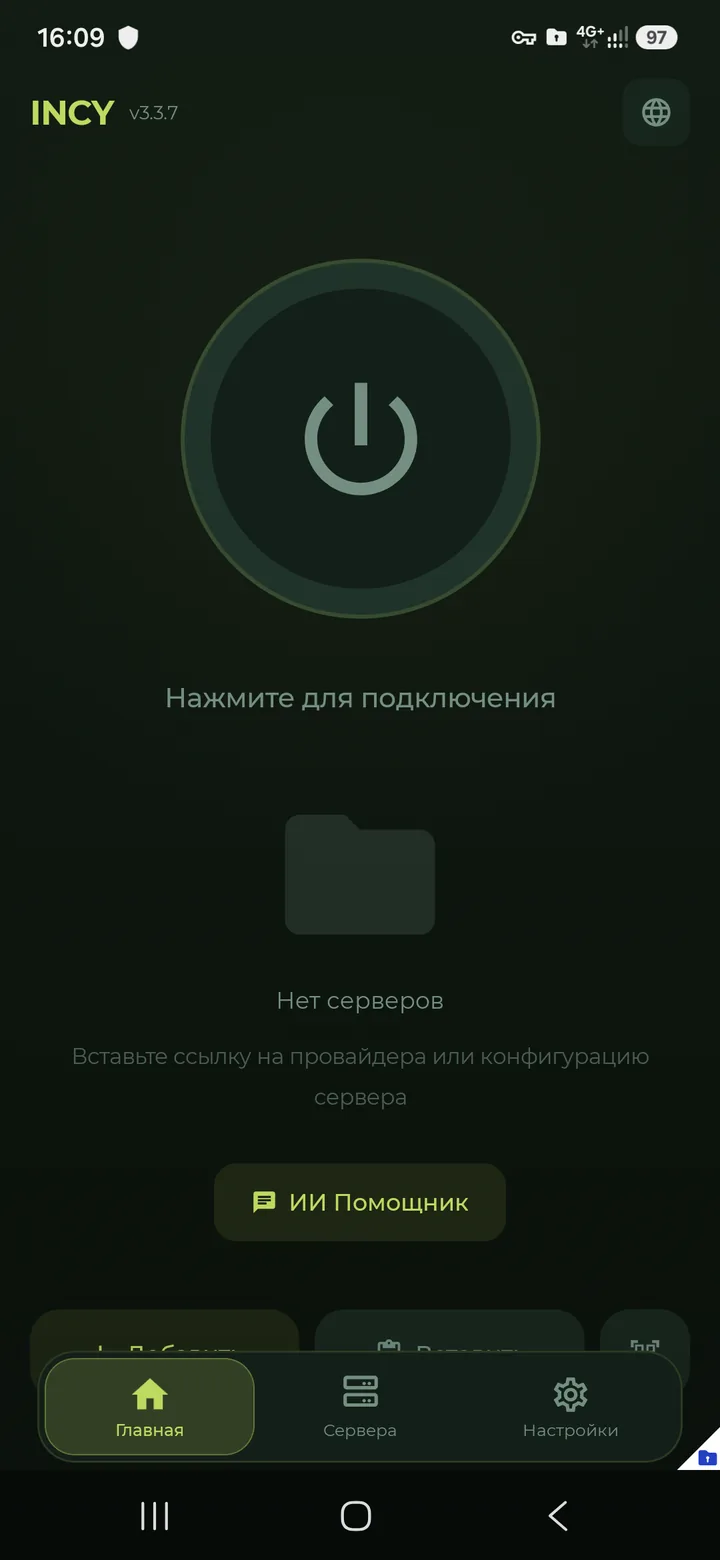
After you pay for the selected location, you receive a subscription URL that looks like this:
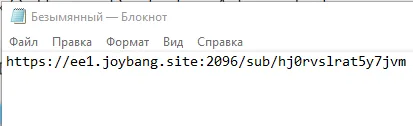
Open it and choose to export the subscription as a QR code and scan it, or copy the URL to the clipboard.
To add the subscription, go to the “Servers” («Сервера») tab, tap “Add” («Добавить») and accept the system prompt.
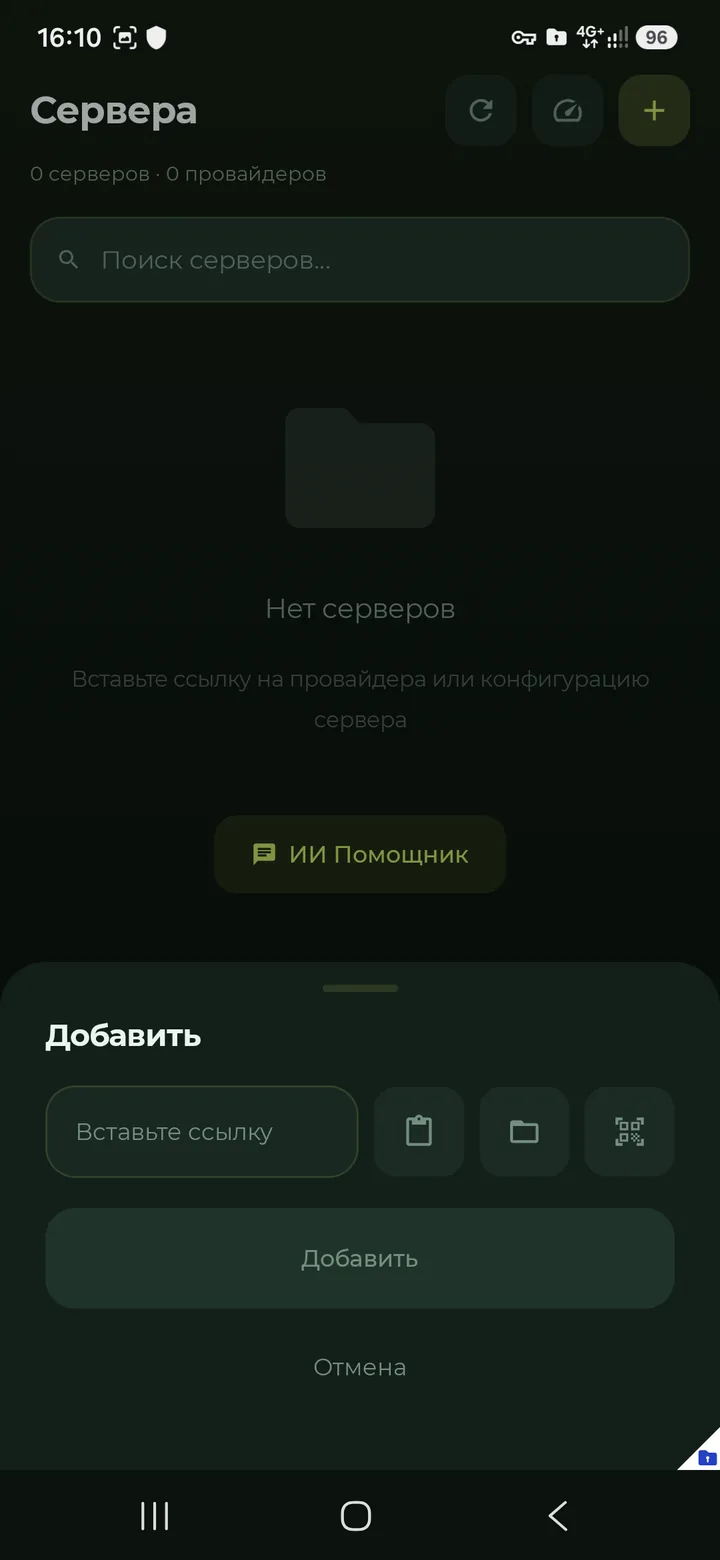
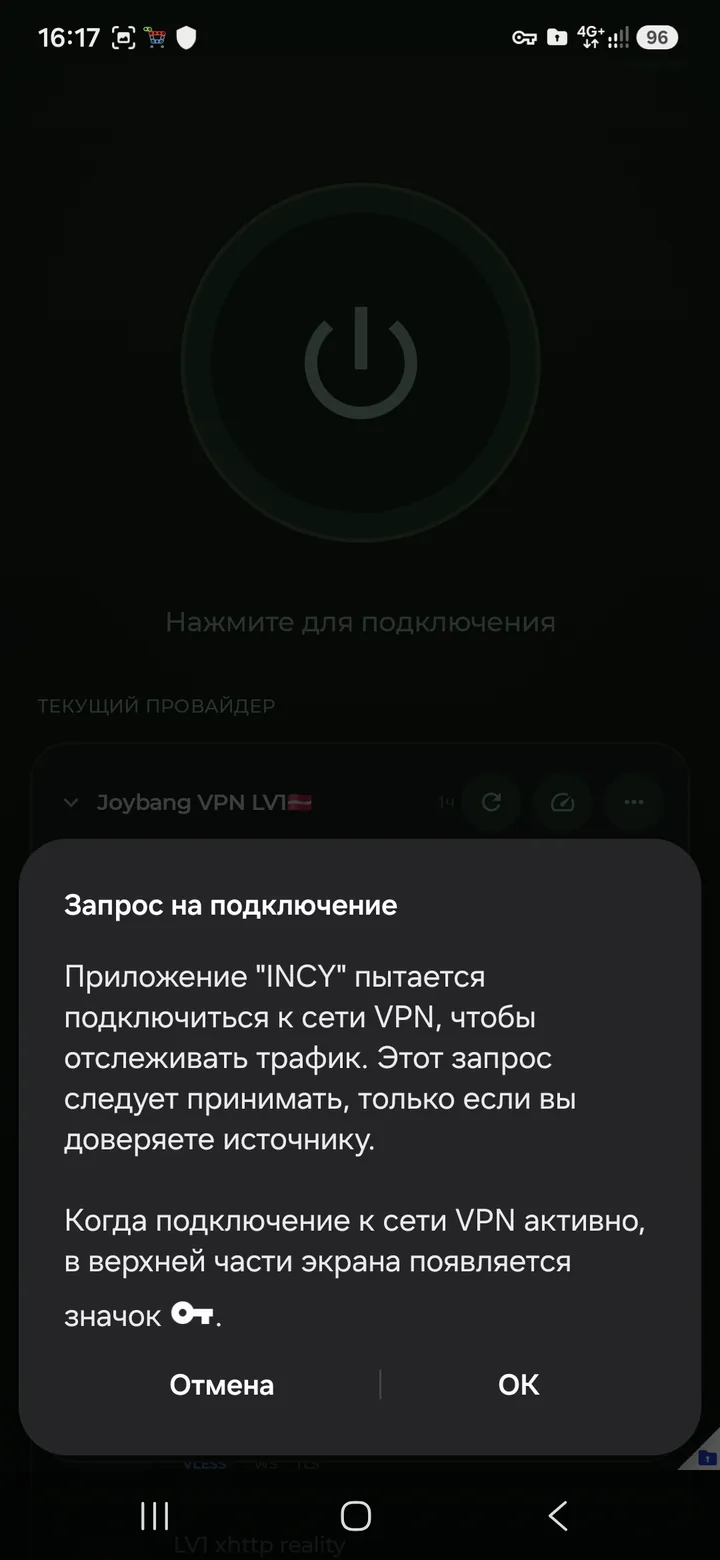
The subscription has been added!
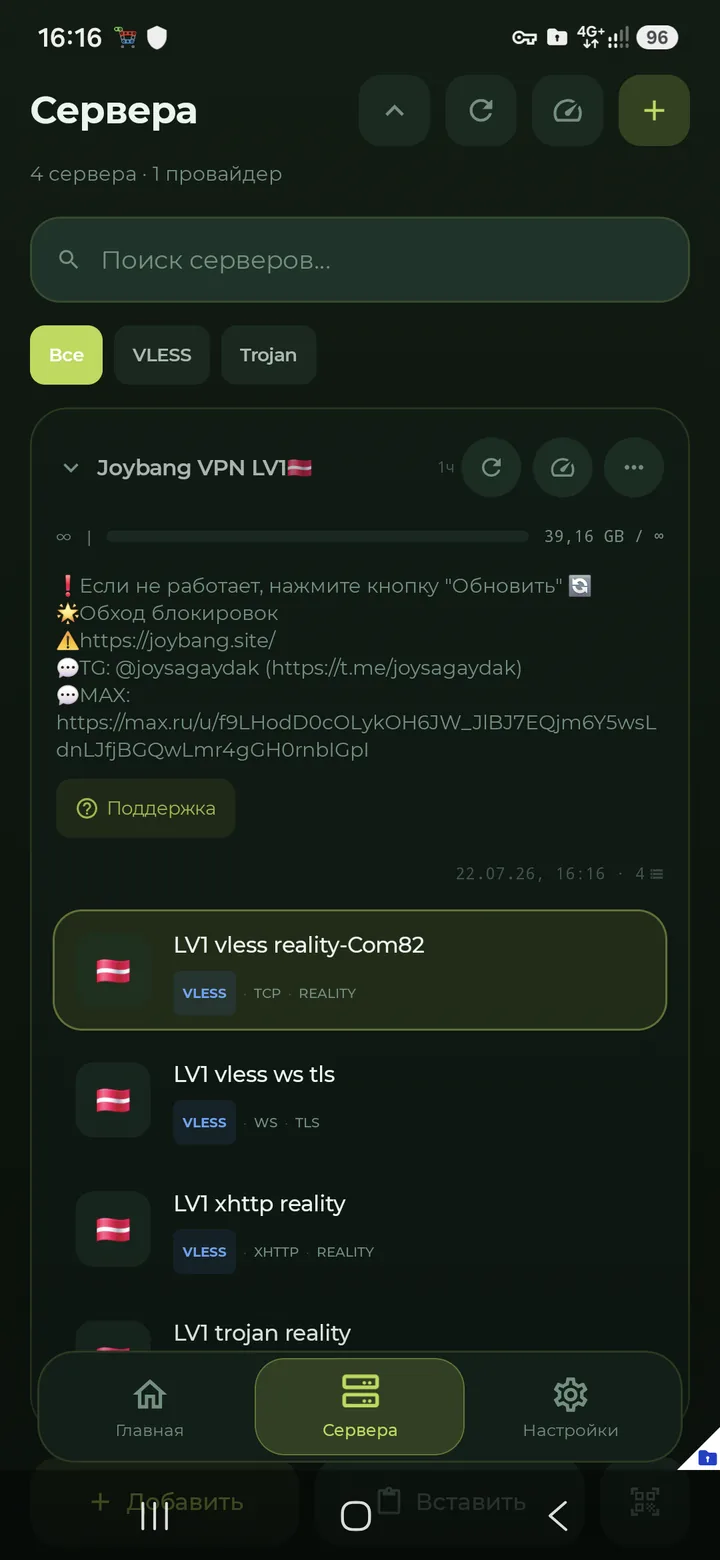
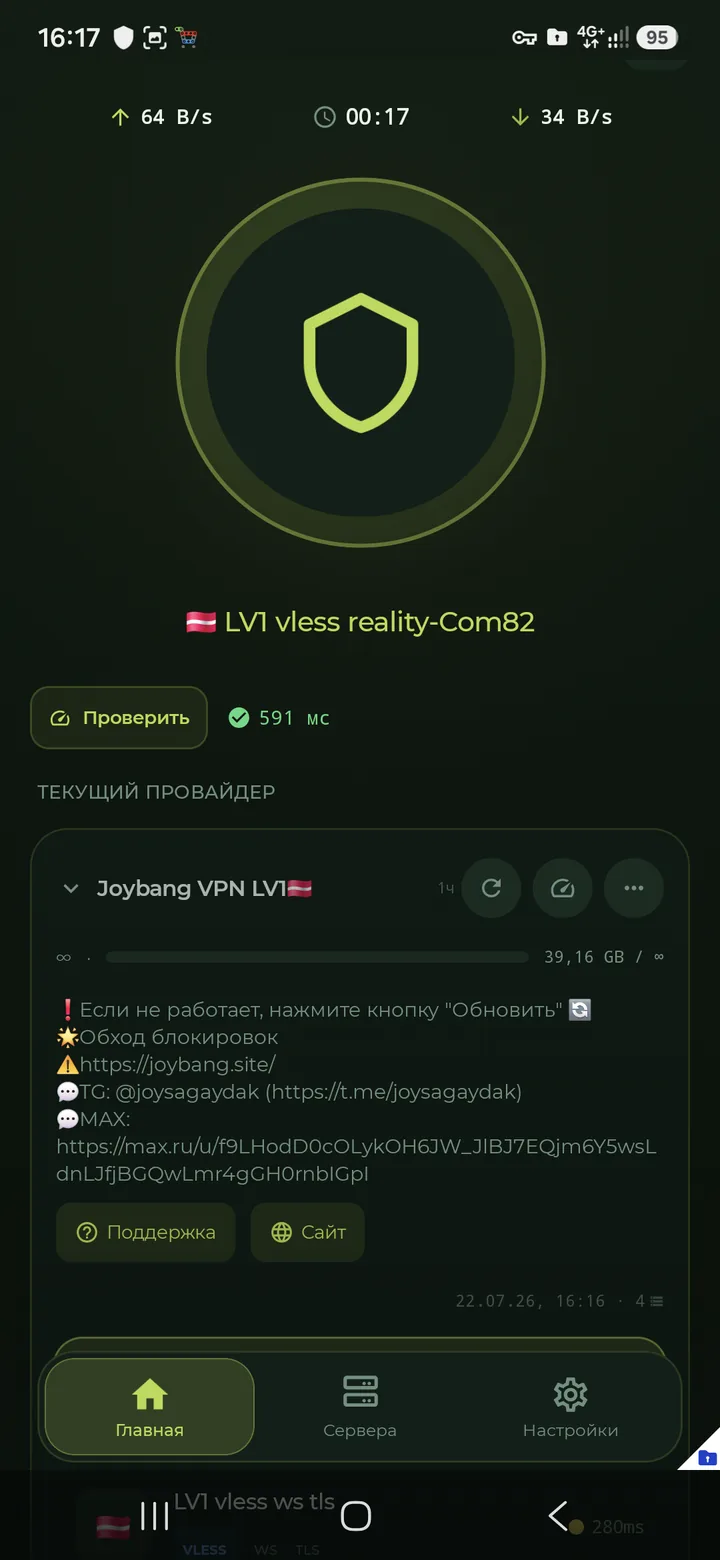
Take a look at the information included in the subscription; the expiry date is shown as well. Tap the server test button and choose the first connection option. Use the large button above to connect and disconnect. Now go to the “Home” («Главная») tab.
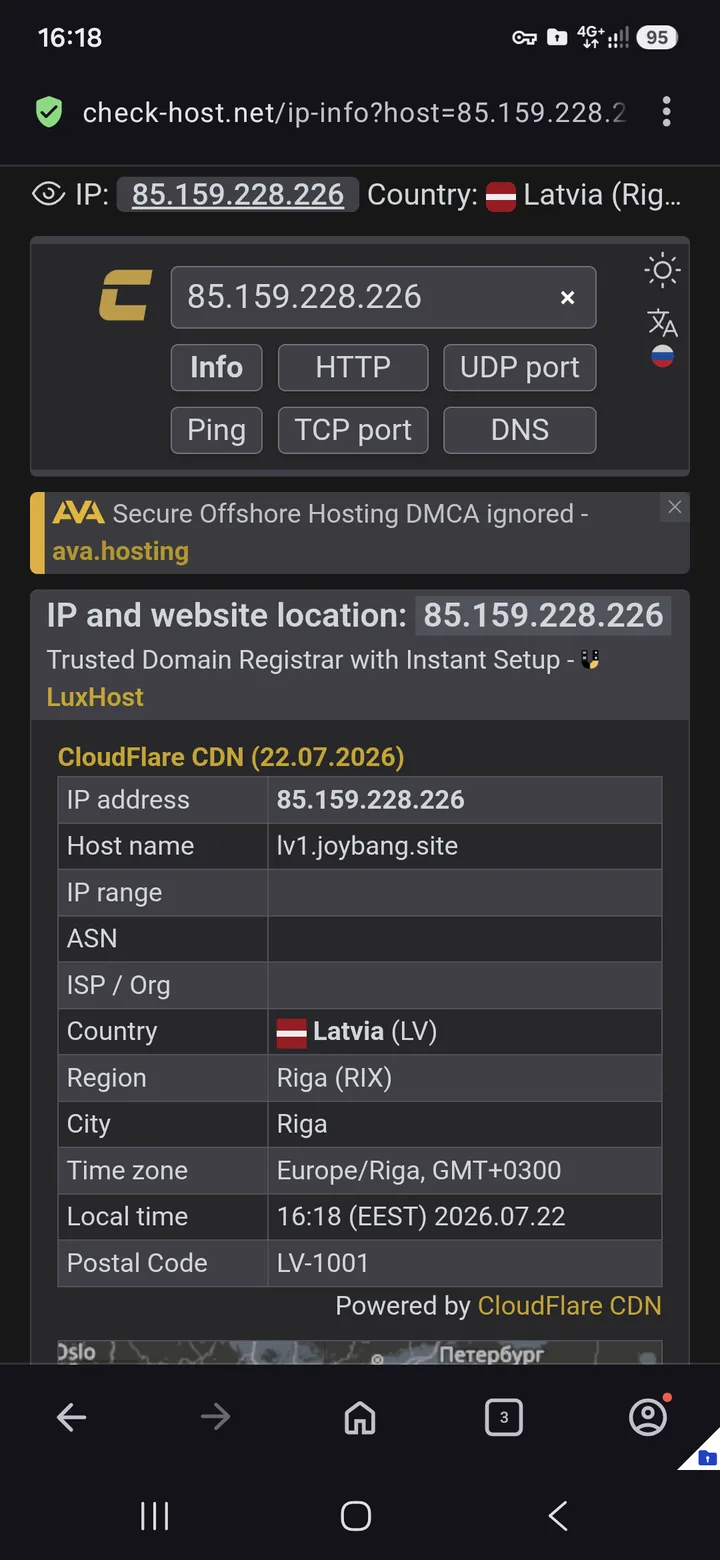
To check the connection, let's open https://
Enjoy!