v2rayN for Windows

v2rayN is a popular and powerful GUI client for Windows designed to get around internet censorship and blocking. It runs on modern protocols (VLESS, VMess, Shadowsocks, Trojan) and disguises encrypted network traffic as ordinary connections (such as HTTPS) to protect your privacy.
Key features:
— High speed and censorship bypass: well suited for getting past strict network restrictions and DPI (deep packet inspection) systems;
— Support for modern protocols: works with the advanced Project X cores (Xray-core);
— Flexible routing: lets you send only specific websites or programs through the proxy while the rest of the traffic goes directly (so your ping in games doesn't go up);
— TUN mode: an optional feature that routes absolutely all of your computer's traffic through the proxy (useful for programs without built-in VPN support).
Benefits for the user:
— Easy to manage: add servers easily using special vless://… URL links, QR codes or text files;
— Automatic updates: keeps its routing databases up to date on its own so geolocation-based rules work correctly;
— Portable: distributed as an archive with a built-in core, so no complicated installation is needed;
— Freedom to configure: you paste in settings (configurations) manually — these come from your personal VPN server or from a VPN service you buy (which provides a subscription file).
How to connect with v2rayN on Windows
You can download v2rayN here: https://
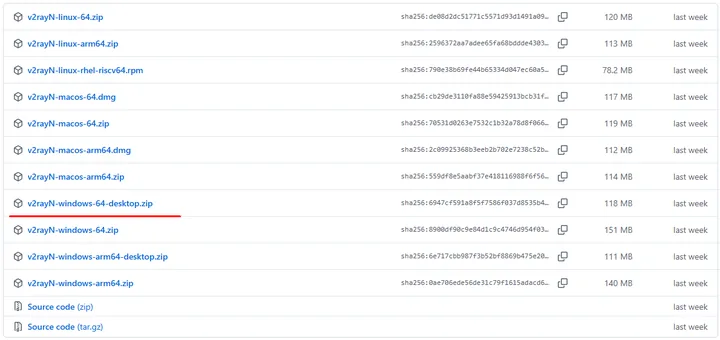
I'll use the v2rayN-windows-64-desktop.
Open the archive.
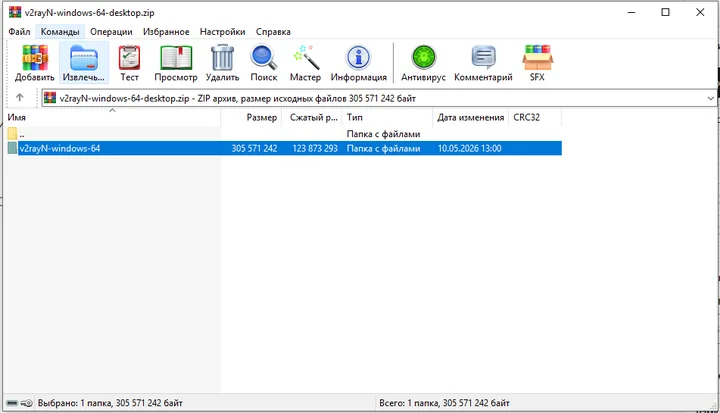
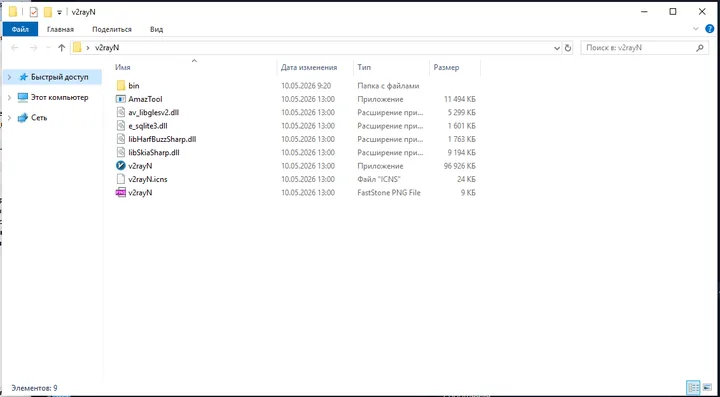
Extract the folder to a convenient location. As an example, I'll extract it to the desktop and rename it to “v2rayN”. The folder contents:
Find the v2rayN executable -> right-click it and tick the checkbox shown in the screenshot. Click Apply and OK.
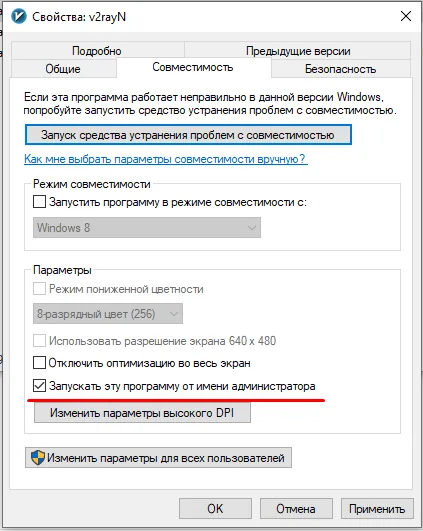
For convenience, you can create a desktop shortcut for v2rayN.exe. To do this, right-click -> Send to -> Desktop (create shortcut).
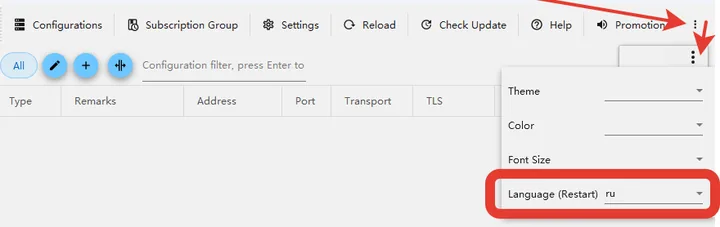
Interface language (optional). The screenshots below show the Russian interface. To match them, launch the program, click the three dots in the top right corner and select “ru” in the “language” field; to keep English, skip this step. After changing the language, restart the app via “Settings” → “Restart as Administrator” at the top.
Important! The program requires Microsoft Visual C++ Redistributable to be installed on your computer; otherwise you'll get an error saying some file could not be found. If you see this error, install the package from the official Microsoft website. If there's no error, you don't need to install anything.
After you pay for the selected location, you receive a subscription URL that looks like this:
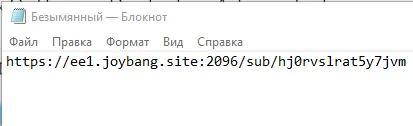
Copy it to the clipboard, then in the v2rayN window open the top menu “Servers” («Серверы») -> “Import share links from clipboard” («Импорт ссылок общего доступа из буфера обмена») (Ctrl + V).
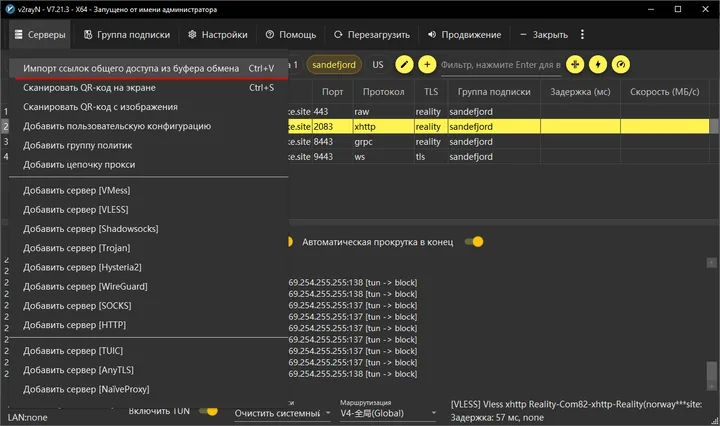
An import_sub subscription will appear — click on it. You'll see that it doesn't contain any servers to connect to yet.
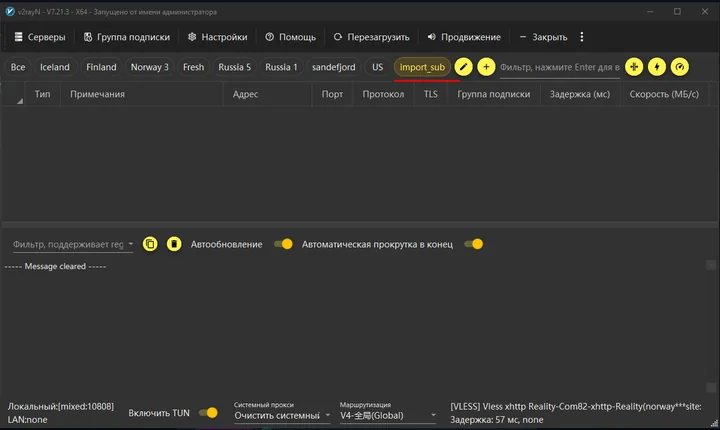
To get a server to connect to, go to the top menu -> “Subscription group” («Группа подписки») -> “Update current subscription without proxy” («Обновить текущую подписку без прокси»).
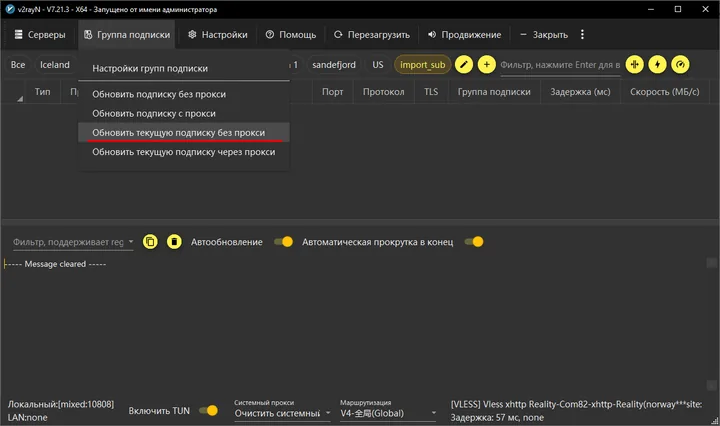
A server will appear.
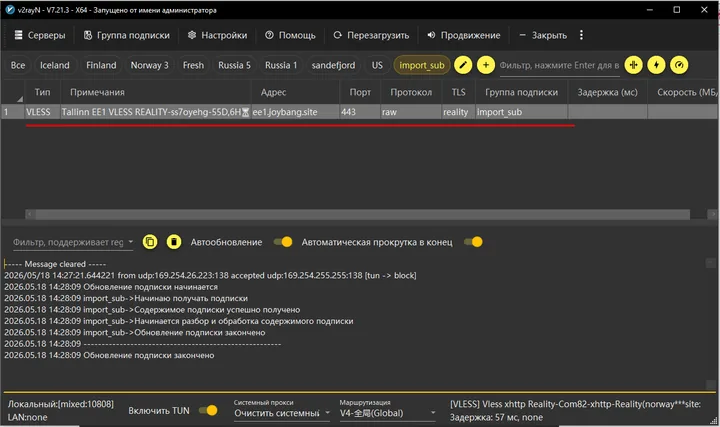
Right-click the server and choose “Set as active” («Сделать активным»).
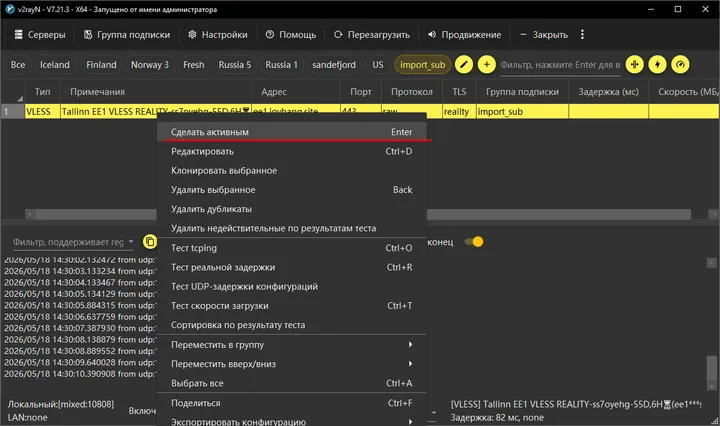
Next, you can choose one of two connection types: TUN mode (through a virtual network adapter), which covers all system traffic; or system proxy mode, which covers traffic from the browser and apps that support the “system proxy” feature (for example, the Telegram messenger).
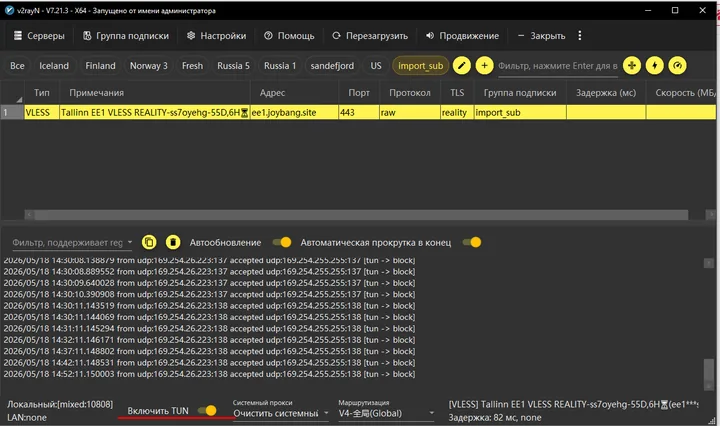
In the program's bottom control panel, click “Enable TUN” («Включить TUN»).
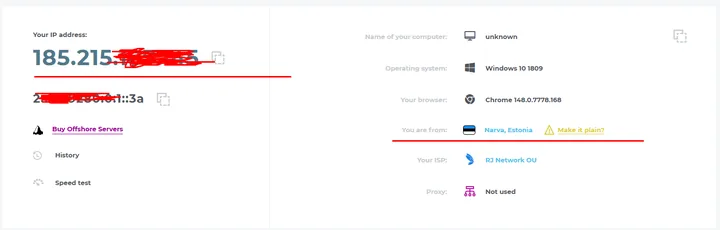
Open 2ip.io to check the connection.
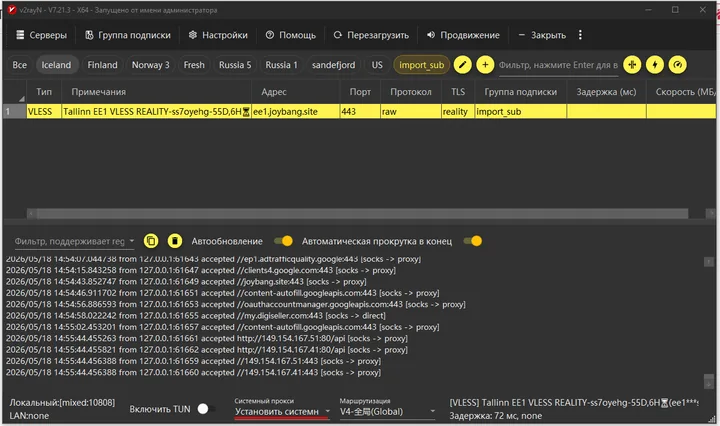
You can also use it without TUN mode: in the bottom panel, choose “System proxy” («Системный прокси») -> “Set system proxy” («Установить системный прокси»).
Done! You're ready to go.
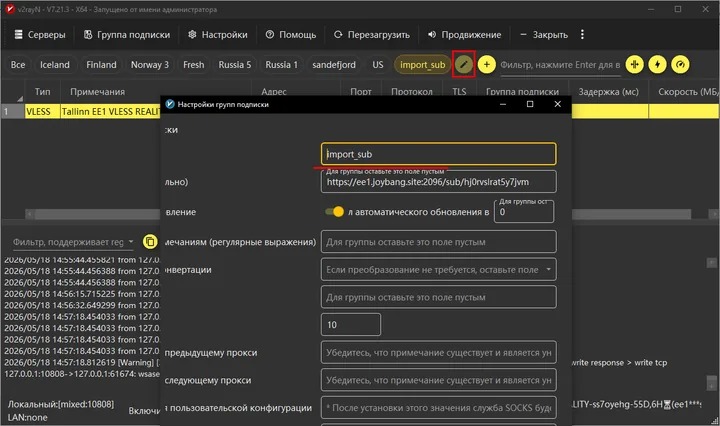
For convenience, you can rename the subscription groups. To do this, click the edit button, then click the confirm button.
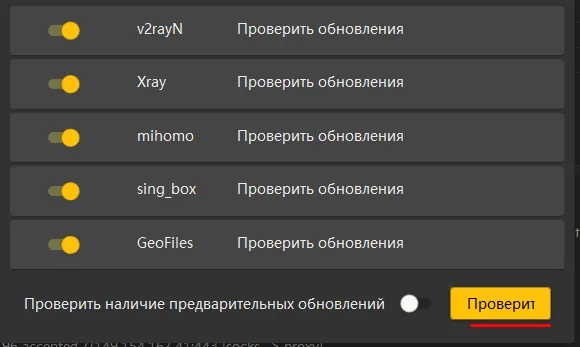
Important! Check the program for updates from time to time. Here's how.
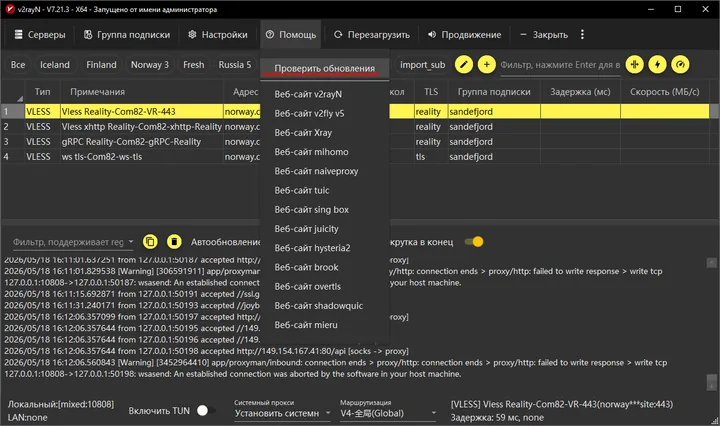
Click “Check for updates” («Проверить обновления»), then “Check” («Проверить»).