Outline for PC (Windows, macOS)
Outline VPN is your reliable guide to digital freedom and privacy. Picture a thin outline drawing the boundaries of your personal space online: it shields you from prying eyes and, at the same time, opens up new horizons for exploring the internet without restrictions.
Built with a focus on security and ease of use, Outline lets you connect to servers while keeping a high level of anonymity and data protection. It's like putting on an invisibility cloak, staying out of reach of curious censors, hackers and even internet providers.
Outline uses the advanced Shadowsocks protocol, which is fast and efficient and doesn't slow your connection down. Every connection is a new opportunity: access blocked resources, keep your conversations private, or simply enjoy unrestricted browsing across the web.
Outline is more than a tool. It stands for trust, openness and the pursuit of freedom. Wherever you are, Outline creates a secure “tunnel” to the internet where what you do belongs to you alone.
In a world where control tightens every day, Outline remains a beacon of hope for those who value their privacy and the right to free access to information. It's not just a VPN — it's your personal key to an internet without borders.
Installing Outline VPN
Download the Outline Client for your computer or mobile device using the links below:
Just run the installer — everything happens automatically, and the main program window opens right away.
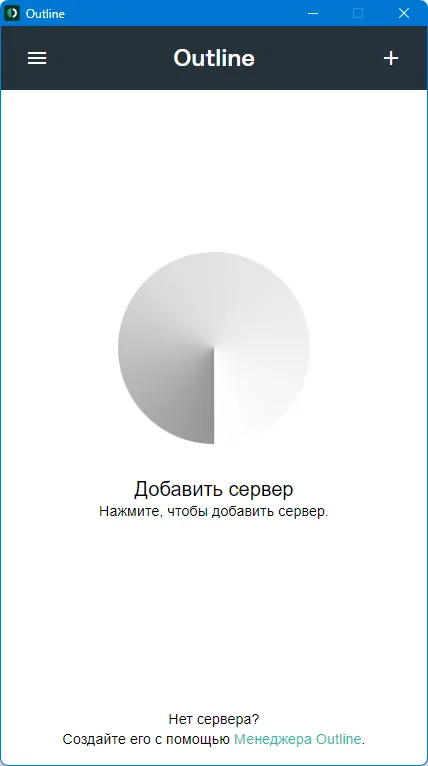
Adding a key
To start using the program, you need to get a key (you can do that here) and add it to the app by clicking “+” in the top right corner; a window for pasting the key will then appear. The key is provided in ss:// format.
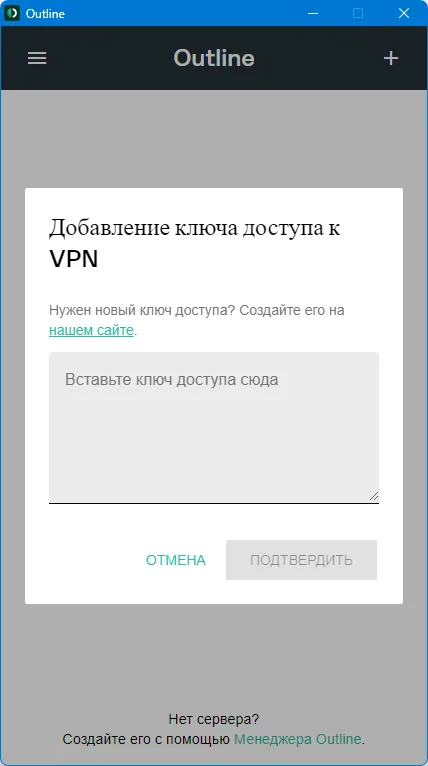
Paste the key and click “Confirm” («Подтвердить»).
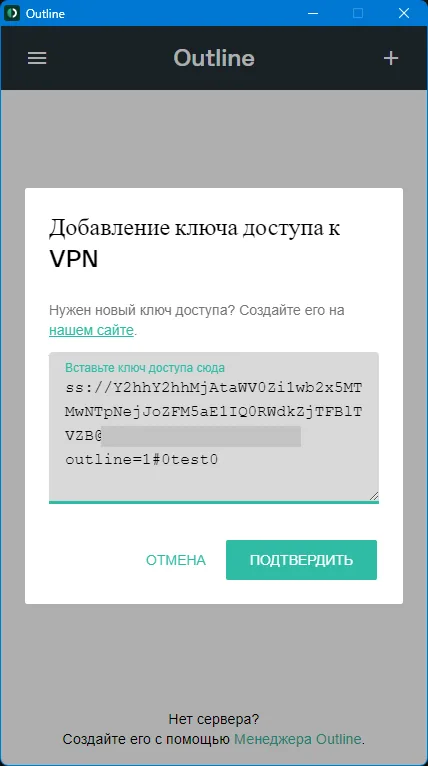
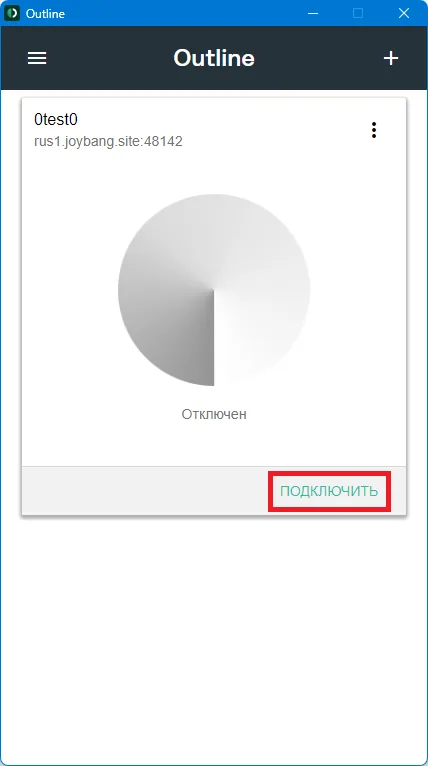
Connecting
Once the key is added, the program is ready to connect — so we do just that by clicking “Connect” («Подключить»).
If everything is fine, you'll see the following: the circle fills with a green gradient and shows “Connected” («Подключен»).
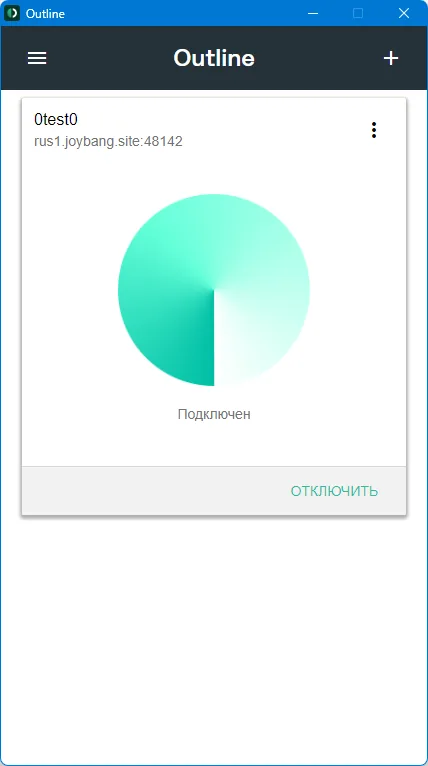
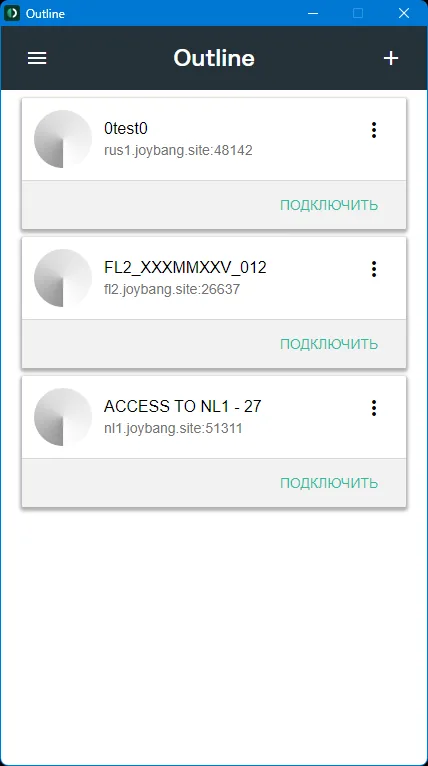
When you're done, just click “Disconnect” («Отключить») and go back to the list of added keys — you can add as many as you like.
Enjoy.