OpenVPN Connect for PC
In a world where digital privacy and security have become an essential part of everyday life, OpenVPN acts as a reliable guardian of your online space. It is an open virtual private network (VPN) platform designed to create secure tunnels between devices, keeping your data confidential, helping you get around geo-blocking and protecting you from unwanted tracking. OpenVPN combines strong cryptographic algorithms with flexible configuration, which makes it a favorite among IT professionals, businesses and everyday users who want freedom on the internet.
The OpenVPN Connect app is a convenient, intuitive client built with ease of use in mind. It lets you connect to VPN servers, import configuration files and manage profiles with ease, turning complex technical processes into a couple of clicks. Whether you work remotely, travel or simply value your privacy, OpenVPN Connect will be a reliable companion for safe browsing.
- Download and install the OpenVPN client from the official website using the links for Windows or macOS.
- After launching the installer, follow the steps below.
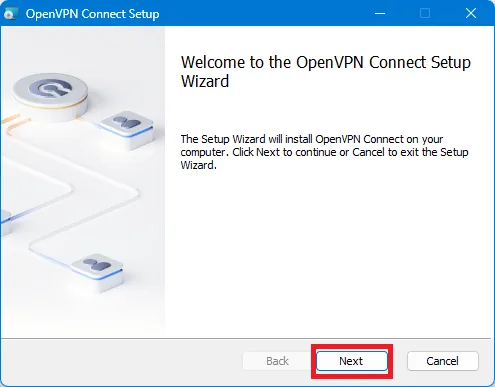
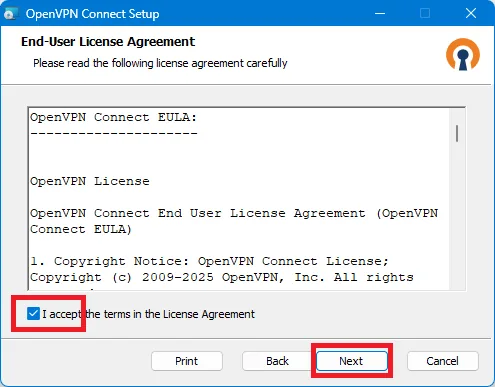
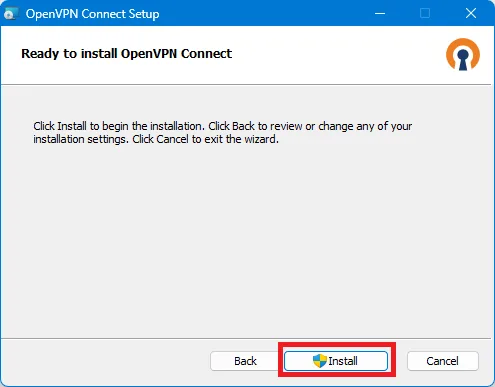
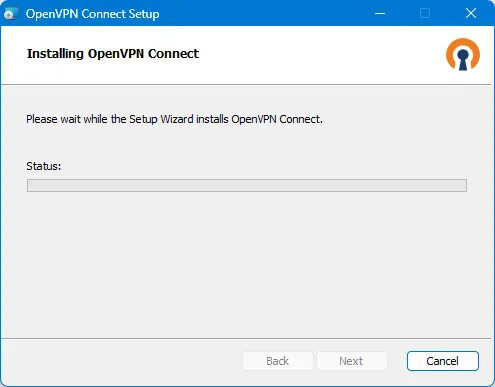
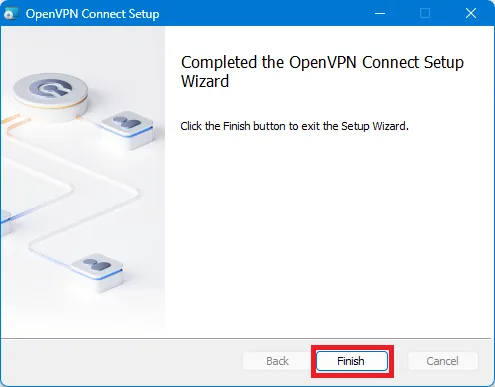
- Once the app is installed, it will launch automatically for the first time. In the window that appears, you will be asked to load a configuration file into it. If you don't have one yet, you can buy it here.
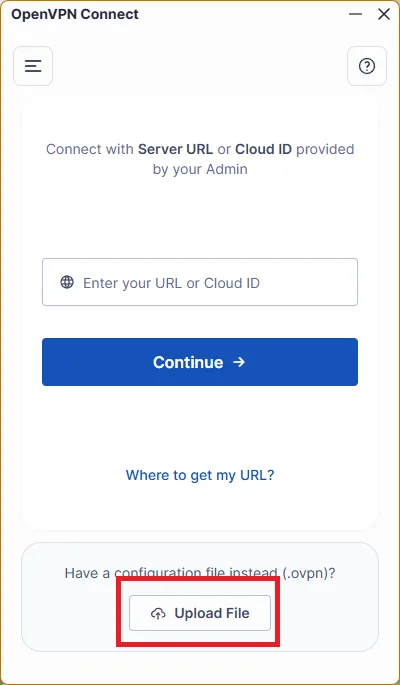
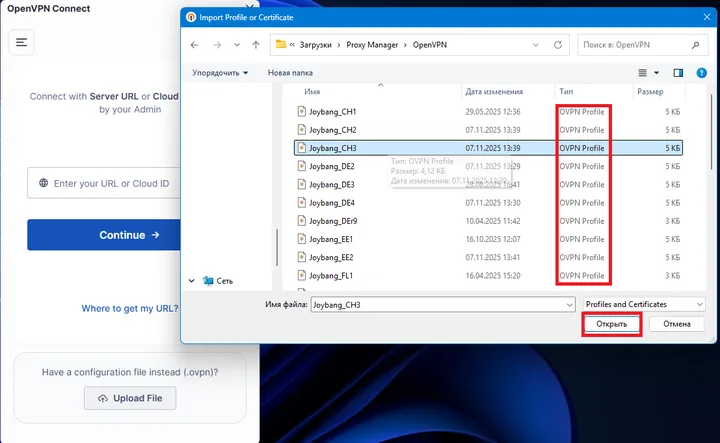
- Select the file you need — look for the .ovpn extension.
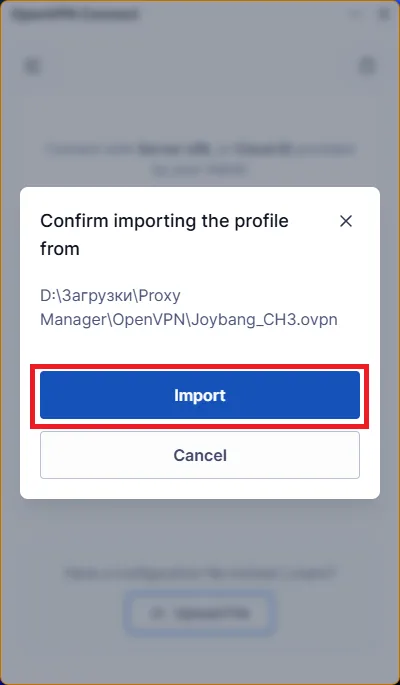
Then confirm the file import.
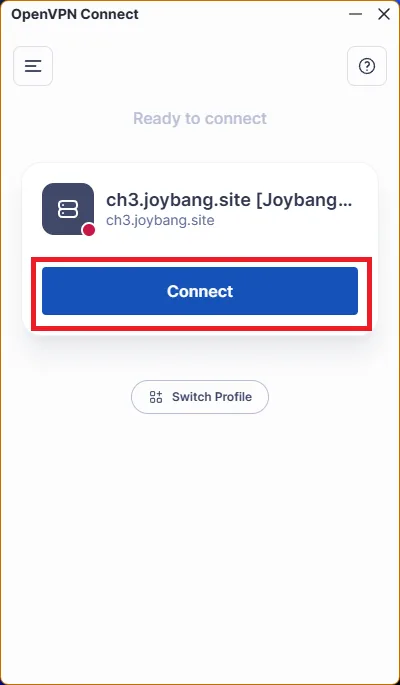
- Everything is now ready. Click Connect to establish the connection.
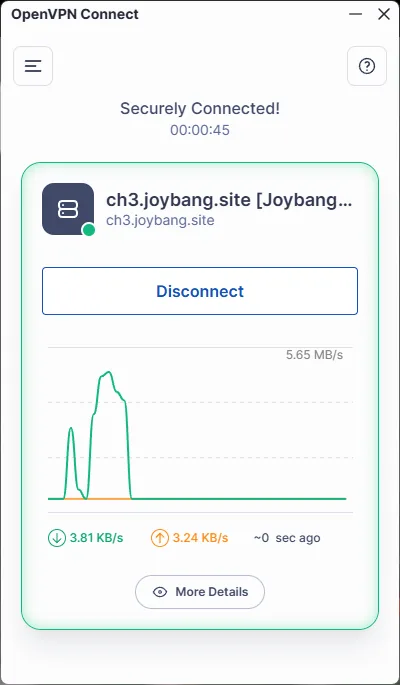
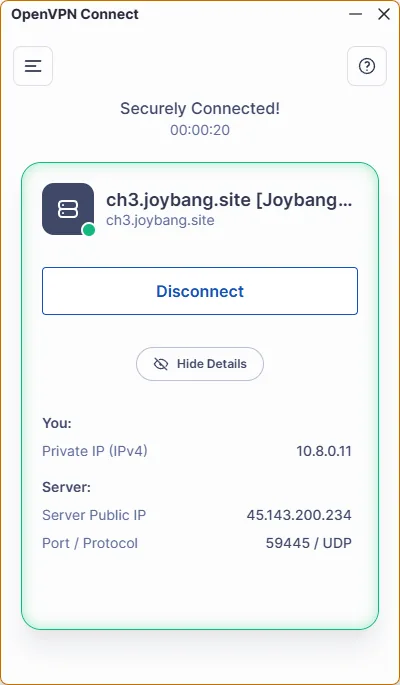
- Once connected, you will see the traffic passing through the tunnel, as well as the IP address you appear under online.
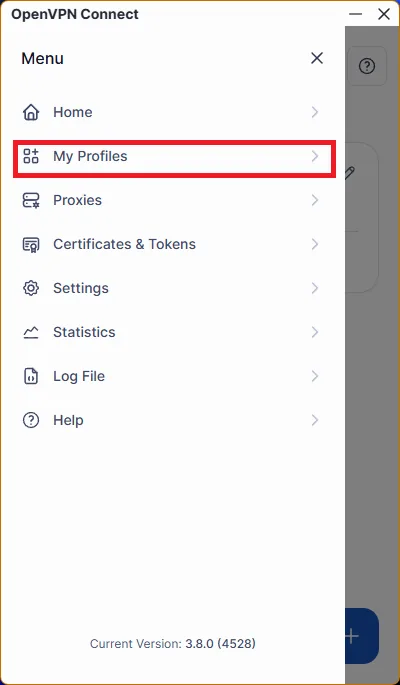
- If you need to work with several configurations, you can add them one by one from the "My Profiles" menu, repeating the steps described above.
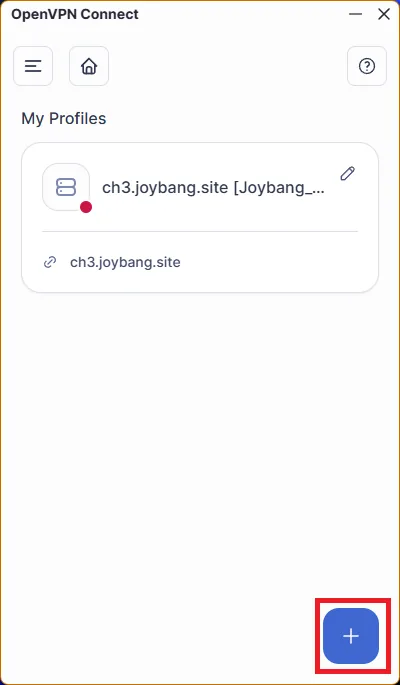
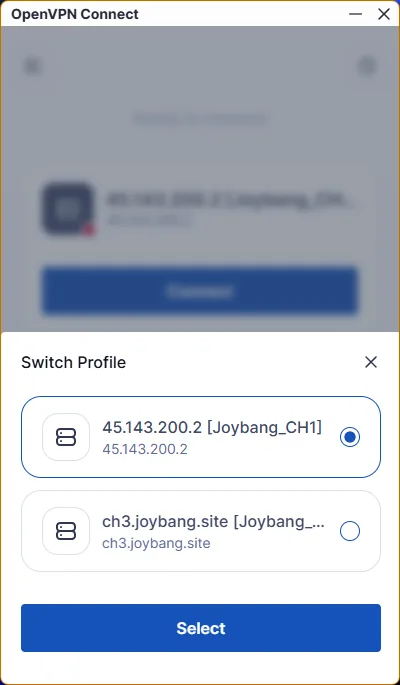
- You can switch between profiles using the "Switch Profile" menu.
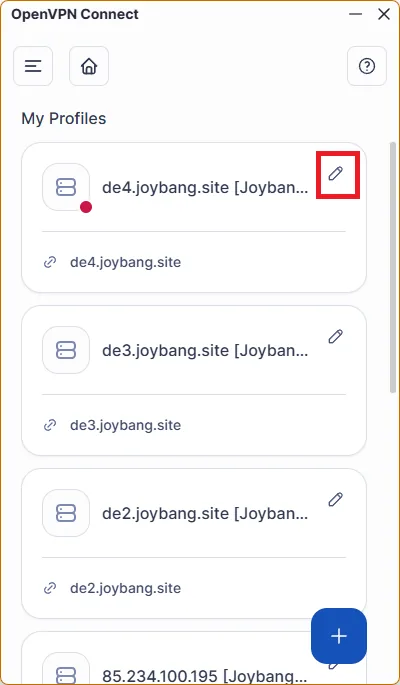
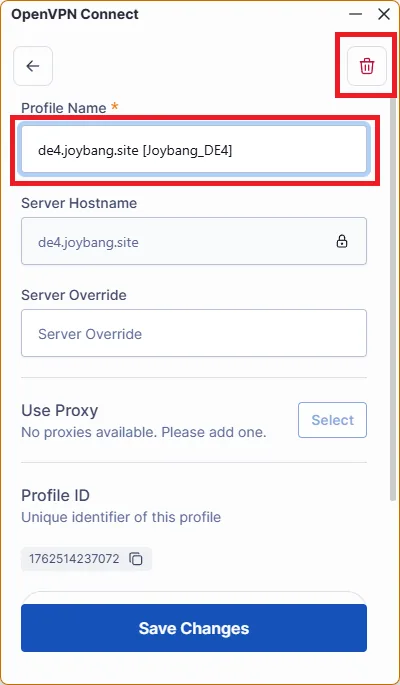
- You can also edit profiles, rename configurations and delete expired ones.
Enjoy!