Throne for Windows

👑 Throne: a worthy evolution and your new key to open internet
Many of us relied on NekoBox for a long time — it was a great, convenient tool. Unfortunately, the original project has been abandoned by its author and no longer receives updates.
As a result, the old client is hopelessly outdated: modern subscription formats and new keys simply don't work in NekoBox or throw constant errors when updating. Internet censorship has changed, and the old tools can no longer keep up.
Throne is a modern fork that keeps the best of the familiar interface but comes with completely new, powerful internals.
🌟 What makes Throne the perfect replacement?
- ✅ Flawless handling of modern subscriptions: Forget about parsing errors and broken links. Throne reads and updates the latest configuration formats without issues (including modern VLESS Reality settings) that the old NekoBox no longer understands.
- 🚀 Up-to-date sing-box core: Under the hood, Throne runs the latest version of this advanced networking engine. That means instant connections, a stable link without drops and maximum download speeds.
- 🤝 Familiar comfort: We kept the familiar, intuitive controls. You won't have to relearn anything — switching to the new app will be as smooth and comfortable as possible.
- 🛡️ Solid obfuscation: Updated encryption algorithms reliably hide your traffic from providers, letting you get around even the most modern blocking.
- 🔋 Lightweight and energy-efficient: The app is optimized to run in the background and doesn't overload the processor.
Throne is more than an update — it's the much-needed revival of a beloved tool. We brought back stability, added support for current technologies and made bypassing blocks simple and unnoticeable again.
Stop fighting the errors of old apps! Install Throne, add your current subscription and enjoy fast internet without borders or limits. Click the connect button. Welcome to a network without borders!
You can download the Throne app here: https://
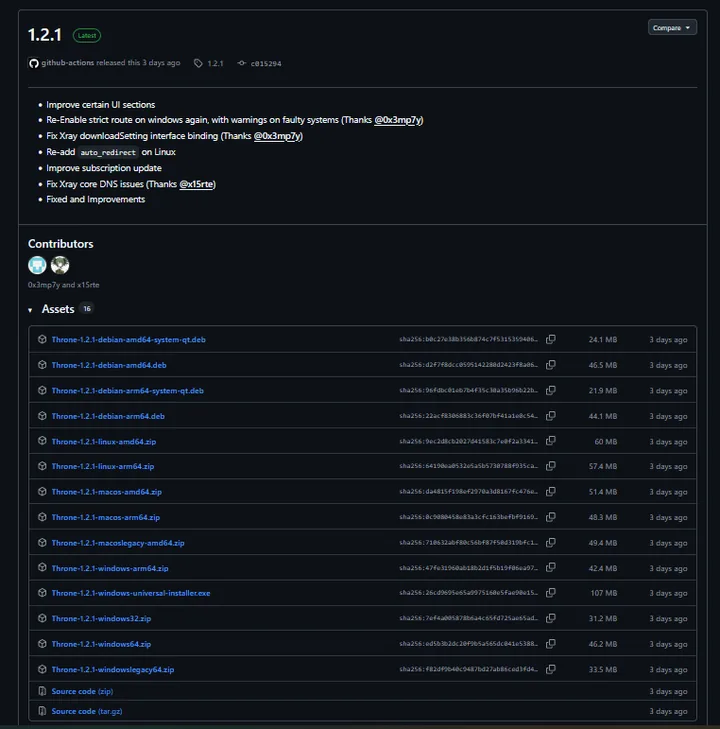
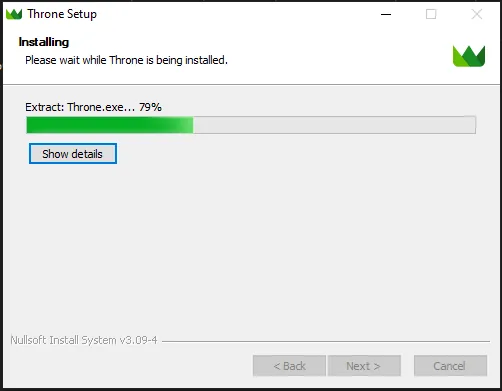
I'll use the Throne-1.
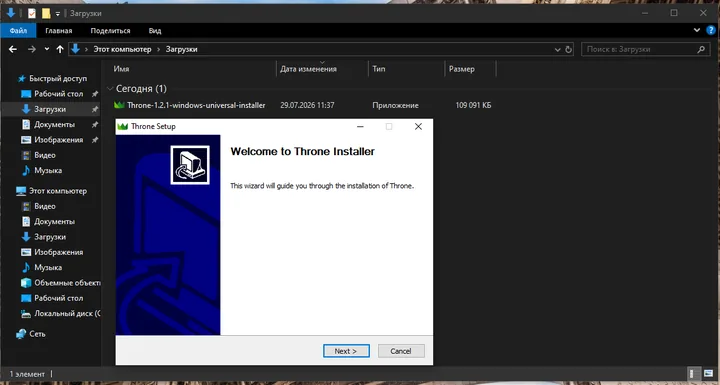
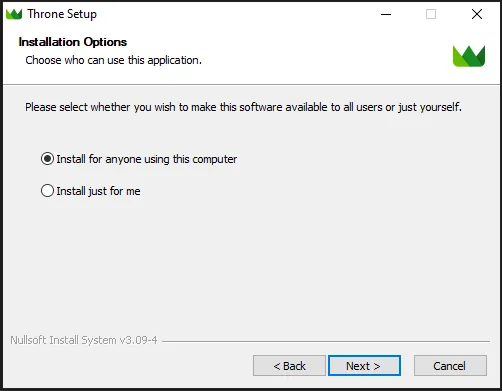
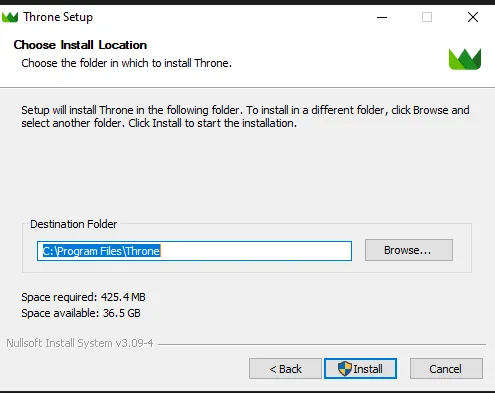
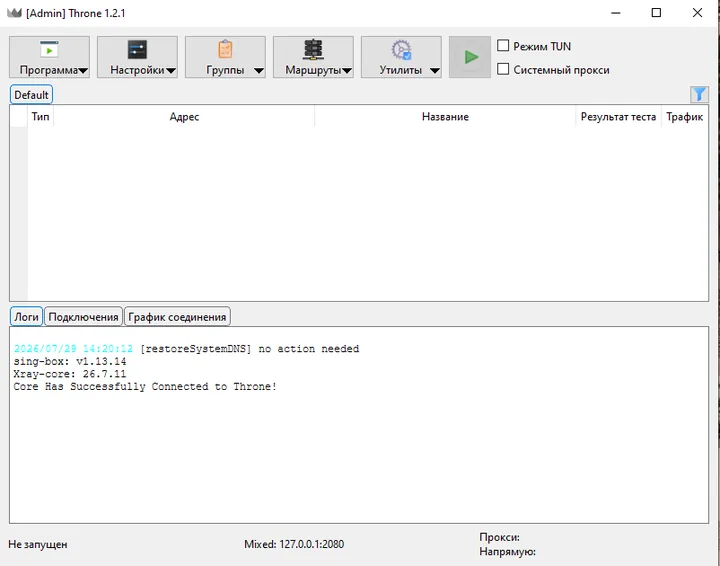
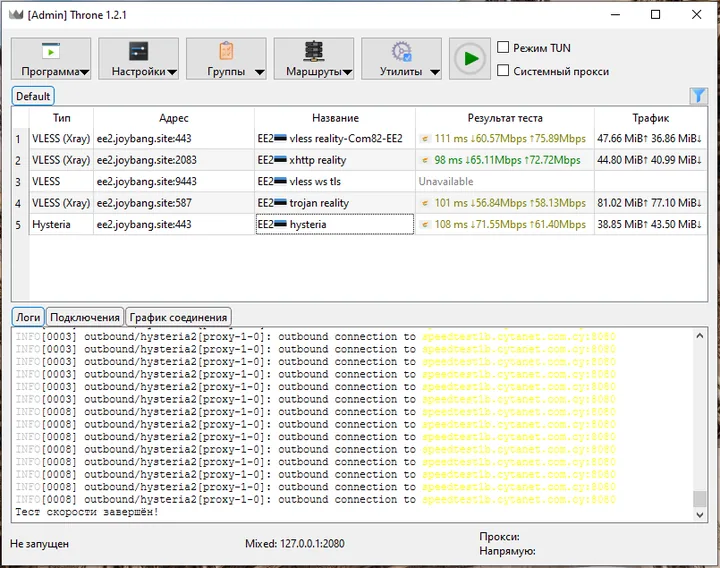
After installation, launch the program. This is what its interface looks like.
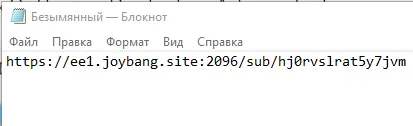
After you pay for the selected location, you receive a subscription URL that looks like this:
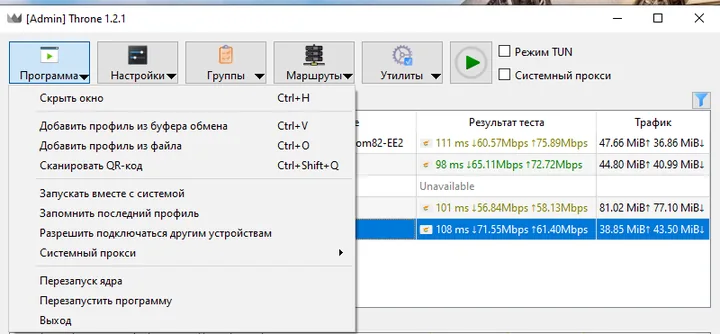
Copy it to the clipboard, then in the Throne window open the top menu Program -> Add profile from clipboard (Программа -> Добавить профиль из буфера обмена) (Ctrl + V).
The imported subscription will appear.
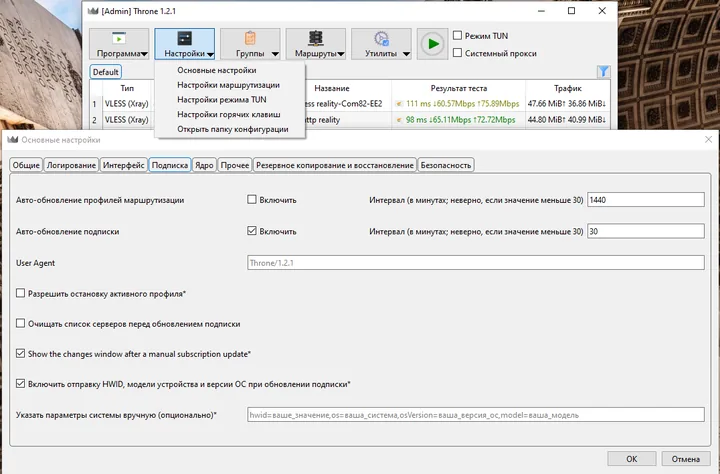
You need to turn on automatic subscription updates. To do this, go to Settings -> Basic settings -> Subscription (Настройки -> Основные настройки -> Подписка). Tick “Auto-update subscription” («Авто-обновление подписки»), set the interval to 30 and click OK.
Why does this matter? Subscriptions are sometimes changed, and without an update the servers in the subscription may stop working. If something doesn't work, you can update the subscription manually: go to Groups -> Update subscription (Группы -> Обновить подписку) (Ctrl + U), or “Update all subscriptions” («Обновить все подписки») if you have several.
Select a profile, for example, trojan reality.
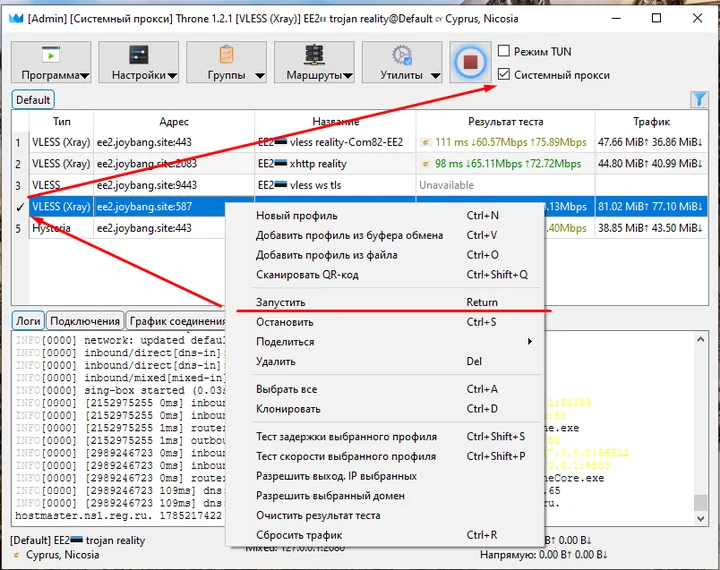
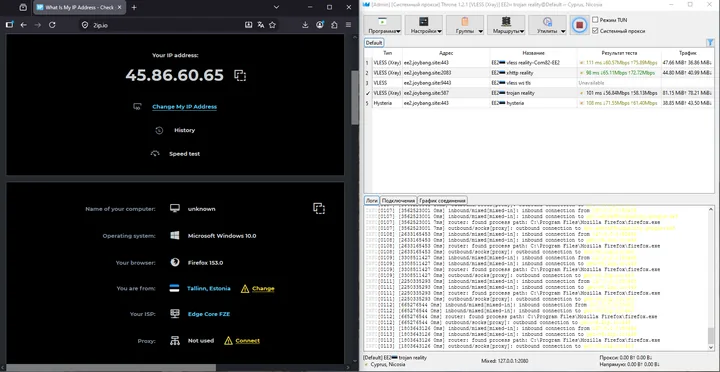
Let's try system proxy mode and open https://2ip.io/.
System proxy mode covers traffic from the browser and from apps that support the “system proxy” feature, such as the Telegram messenger.
You can also use TUN mode — for example, open https://
TUN mode (via a virtual network adapter) covers all system traffic.
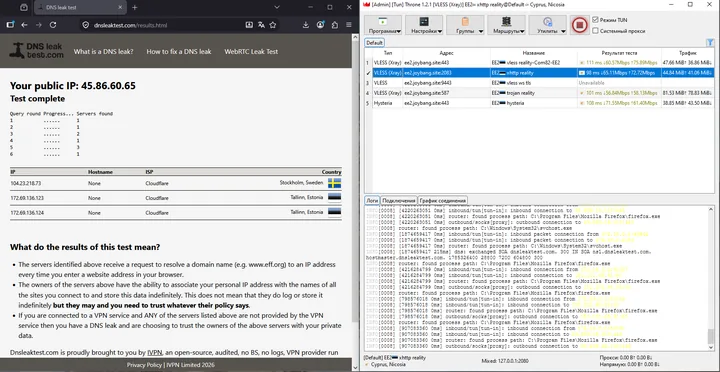
To disconnect from a profile, click the red square and untick the selected mode (TUN or system proxy).
Important! Check the program for updates from time to time. The links are given at the beginning of this guide.
All set! You're ready to go.