NekoBox for Windows
NekoBox is a versatile tool for creating secure VPN connections, proxying and tunneling traffic. The app runs on advanced protocols such as Xray and supports various types of proxy servers, keeping you secure and helping you get around network restrictions.
NekoBox for Windows is a neat, portable helper that turns complex setup into an easy process. Add keys with a single action, switch between TUN mode and system proxy, set up traffic routing and launch profiles as easily as playing your favorite game. From remote work and fast-paced gaming to carefree browsing, NekoBox opens the door to an open, secure internet.
1. Installation
Download Nekoray for Windows (64-bit). This is the version for 64-bit Windows systems and suits most modern computers running Windows 10 or 11. The package is an archive that doesn't need to be installed into the operating system (a portable version): just extract the archive and run the executable.
2. First launch
Open the Nekobox folder and run Nekobox.exe.
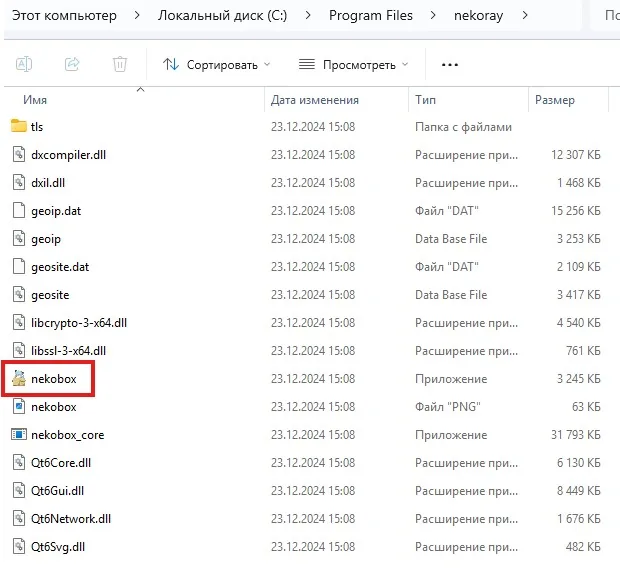
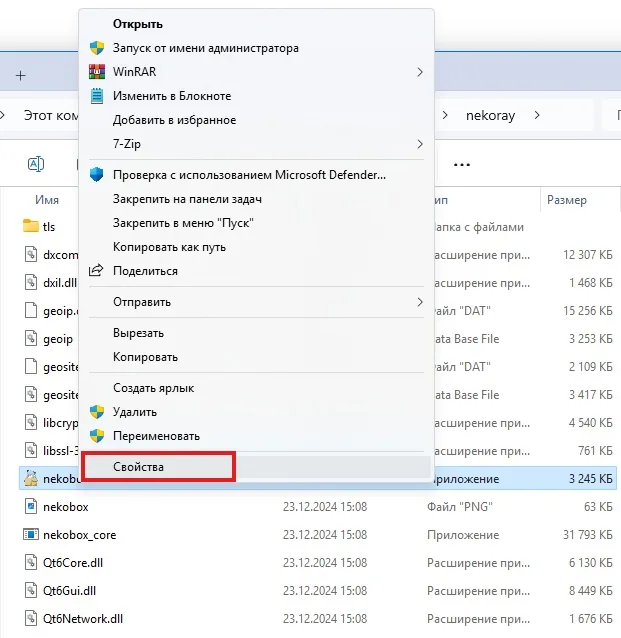
First, make sure the program always runs as Administrator. Right-click it and open Properties («Свойства»).
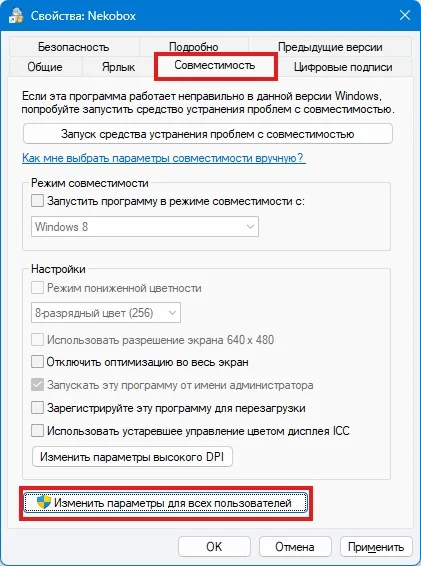
Then go to the Compatibility («Совместимость») tab, click Change settings for all users («Изменить параметры для всех пользователей») and tick Run this program as an administrator («Запускать эту программу от имени администратора»).
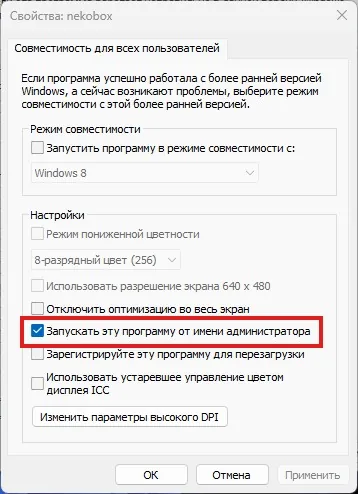
Apply the changes and launch the program.
Important!
- after launch, in the Windows Firewall window you MUST tick BOTH checkboxes (private and public networks); if you use a third-party firewall, add the app's connections to its exceptions.
- in most cases, for TUN to work you need to add the program folder, as well as nekobox.exe and nekobox_core.exe, to your antivirus exceptions.
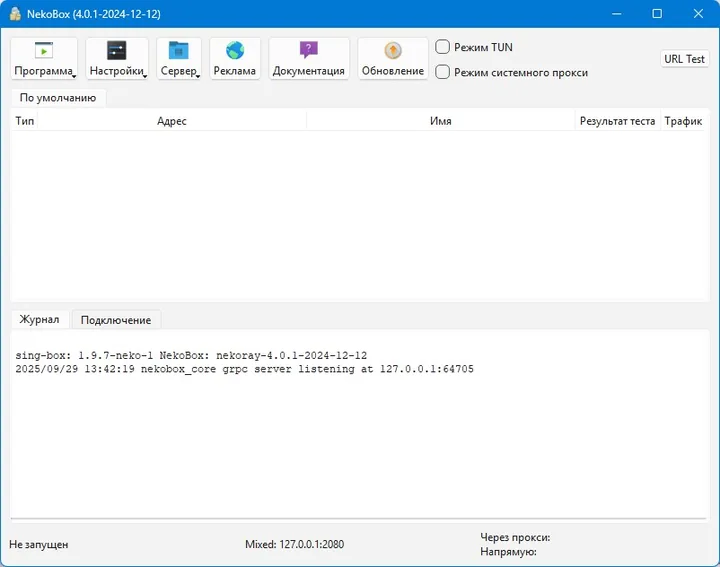
3. Adding keys
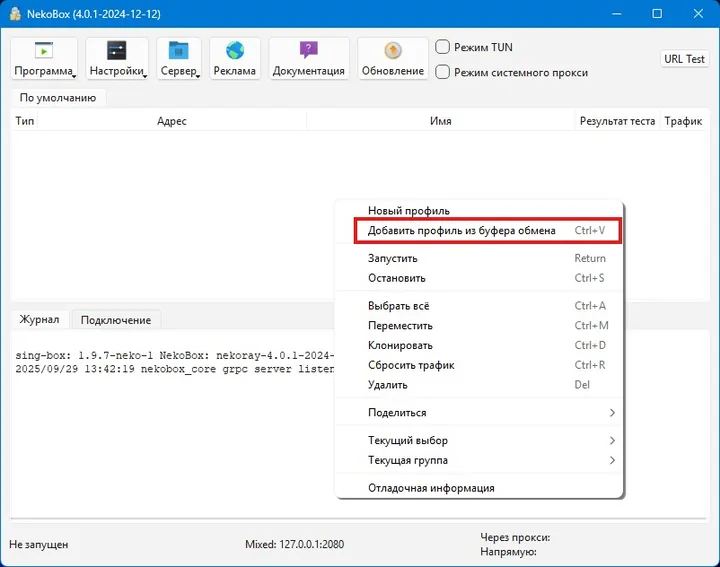
Once you've received a key for Vless Reality VPN in vless:// format or for a proxy in socks5://
- with the Ctrl + V keyboard shortcut
- by right-clicking the connections area and choosing the corresponding menu item
- via the Server («Сервер») menu.
4. Turning on TUN mode and starting a profile
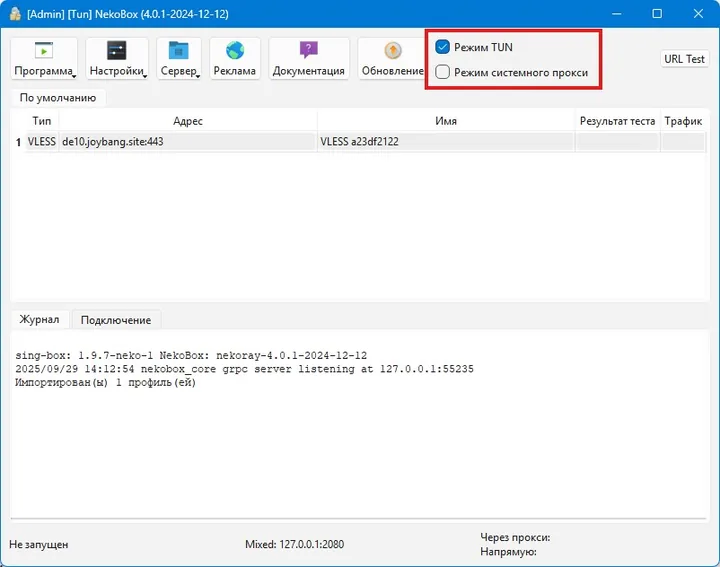
Turn on TUN mode («Режим TUN») or System proxy («Системный прокси») (the differences between these modes are described below).
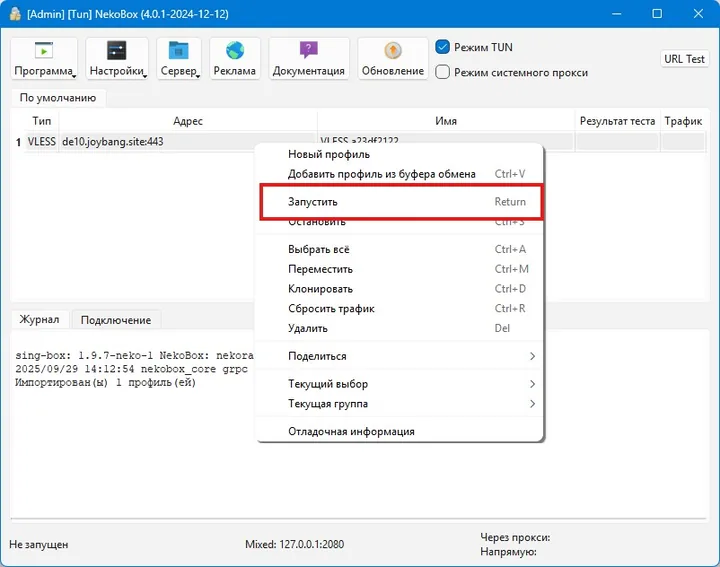
Right-click the profile you want (you may end up with several) and choose Start («Запустить») from the context menu.
NekoBox is now set up and proxies all connections (in TUN mode). In some cases you may need to wait a little while all the tunnels are set up and the program starts working fully.
5. Differences between TUN mode and system proxy
System Proxy:
- changes the proxy settings in the operating system;
- works only for apps that use the system proxy settings (for example, browsers, some versions of messengers, etc.);
- doesn't work with games, some clients and console programs, or special protocols (for example, voice support in Discord) that don't use the system proxy;
- can't be applied to individual apps;
- doesn't capture all traffic.
TUN mode (Virtual Tunnel Network):
- creates a virtual network interface and fully captures traffic, including traffic that doesn't go through the system proxy;
- works for all system traffic — including games, updates, DNS requests, etc.
- proxies all devices; you can configure what should be proxied and what should go directly.
- Split tunneling
If you only need to proxy certain processes running on your computer, you can configure TUN mode to use “whitelists”.
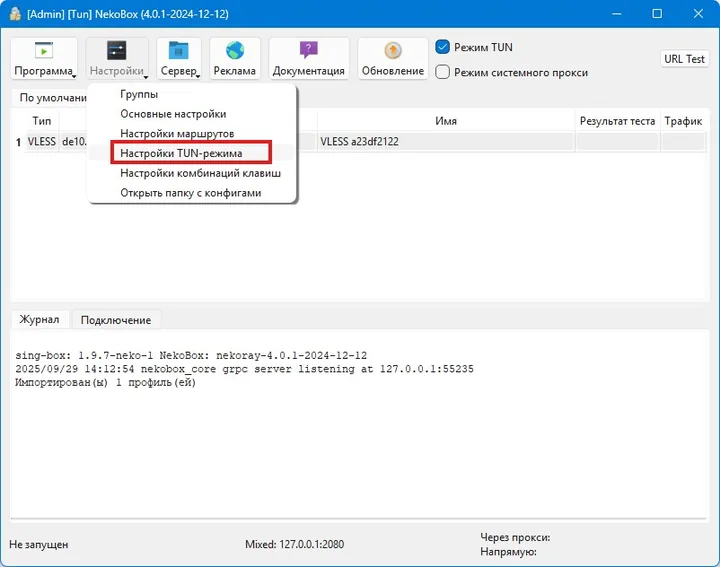
Go to Settings — TUN mode settings («Настройки — Настройки TUN-режима»).
In the next window, make sure the “Built-in TUN*” («Встроен. TUN*») option is enabled. Then turn on “Whitelist mode” («Режим белого списка») (your traffic will be handled by the nekobox core) and enter the processes to proxy in the corresponding field.
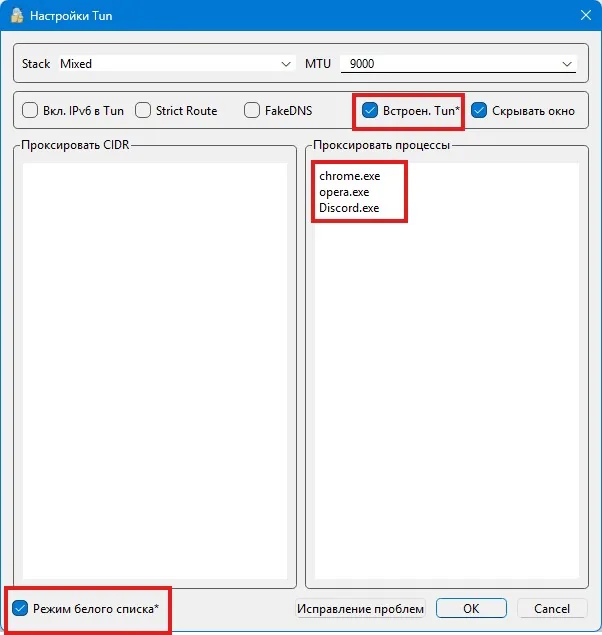
Once you've done this, Nekoray will proxy only the specified processes, and all other connections will go directly. This is especially important for online games.
Enjoy.