OpenVPN Scramble (XOR) for Windows

OpenVPN Scramble (XOR) is a refined traffic obfuscation technique that blends in with the ordinary noise of the digital airwaves: every data packet goes through a logical XOR operation with a predefined key. This feature, built into the OpenVPN protocol, hides the nature of a VPN connection from the curious eyes of censors and deep packet inspection systems, turning recognizable signatures into a chaotic stream of bytes. In essence, Scramble does not touch the main encryption; it only distorts the outward appearance of the data so that it looks like random noise, which is especially useful in regions with strict internet censorship. In this way, the XOR method adds a layer of invisibility, letting users get around blocks without losing speed or security.
Unlike standard OpenVPN, which relies on a transparent TLS handshake and easily recognizable headers, Scramble (XOR) adds an extra element of cunning by rearranging packets at the bit level so they don't reveal their VPN nature. Regular OpenVPN, like an open book, can be blocked by its signatures, while the scrambled version masks these markers, making the traffic indistinguishable from ordinary network noise. The difference shows in the ability to bypass DPI (Deep Packet Inspection): the standard protocol often falls victim to filters, while the XOR variant slips through unnoticed. As a result, Scramble strengthens anonymity without changing the core encryption mechanisms, adding a tactical trick for surviving in hostile networks.
The advantage of OpenVPN Scramble (XOR) lies in its simplicity and effectiveness — like an invisibility cloak for a digital wanderer, it helps you keep your privacy in a world of constant surveillance. The method doesn't require complex setup, yet it significantly increases the chances of a successful connection in countries with repressive regimes, where a regular VPN is quickly detected. Standing apart from basic OpenVPN thanks to its adaptability, Scramble becomes a tool for those who value freedom of information above all else. Ultimately, it highlights the evolution of protocols, where obfuscation becomes the key to unrestricted internet access.
Every one of our OpenVPN configurations can optionally be switched to OpenVPN Scramble (XOR).
We recommend downloading the Scramble-enabled version from here. Most Windows computers run on the amd64 processor architecture; if yours does too, download that one.
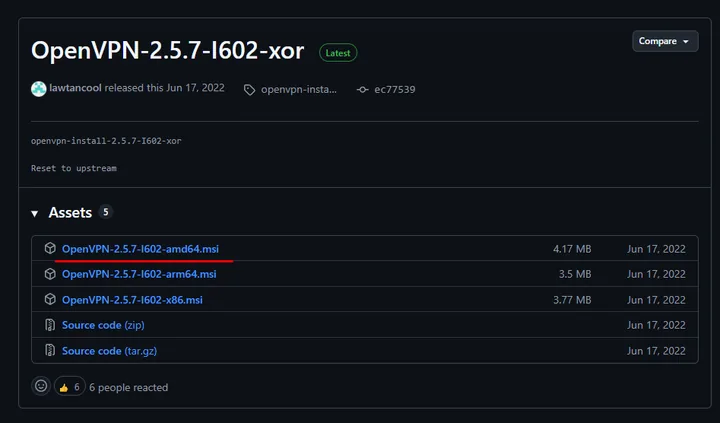
Once downloaded, open the file "OpenVPN-2.5.7-I602-amd64" and click "Install Now".

Wait for the installation to finish.
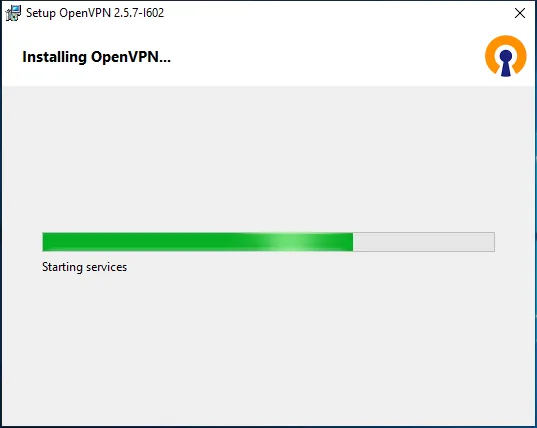
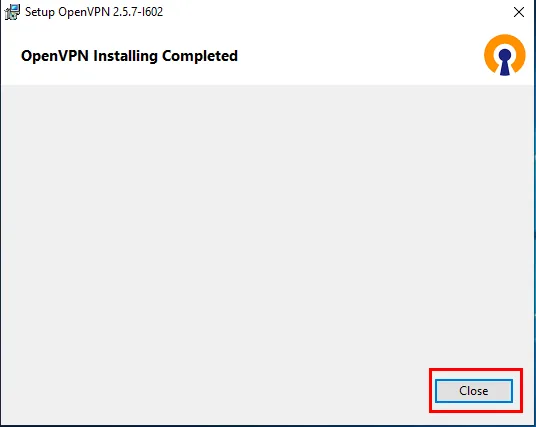
Confirm that the installation is complete by clicking the "Close" button.
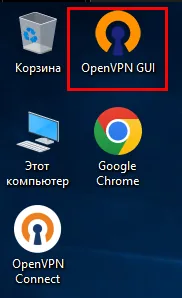
You'll see a new shortcut on your desktop — open it and the program will start.
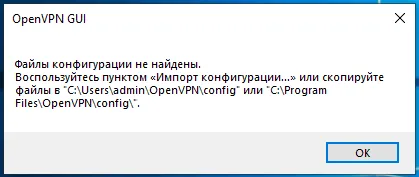
ATTENTION! If you bought the OpenVPN Scramble product (a ready-made configuration), you don't need to edit anything — skip this step.
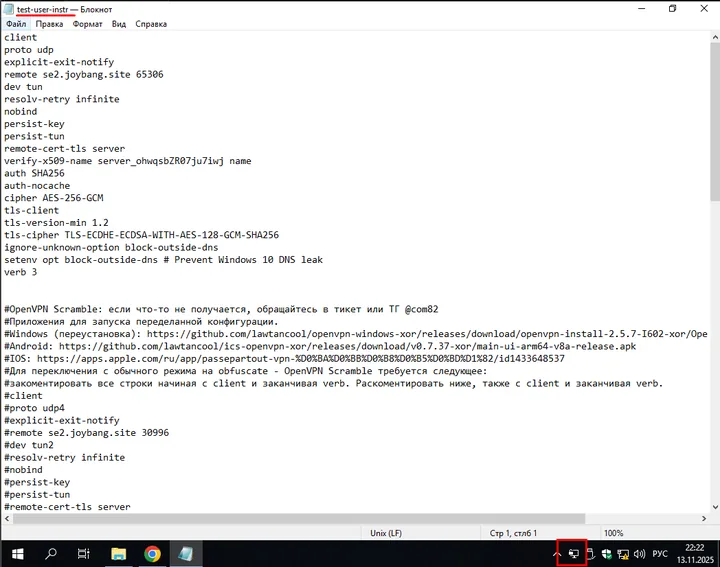
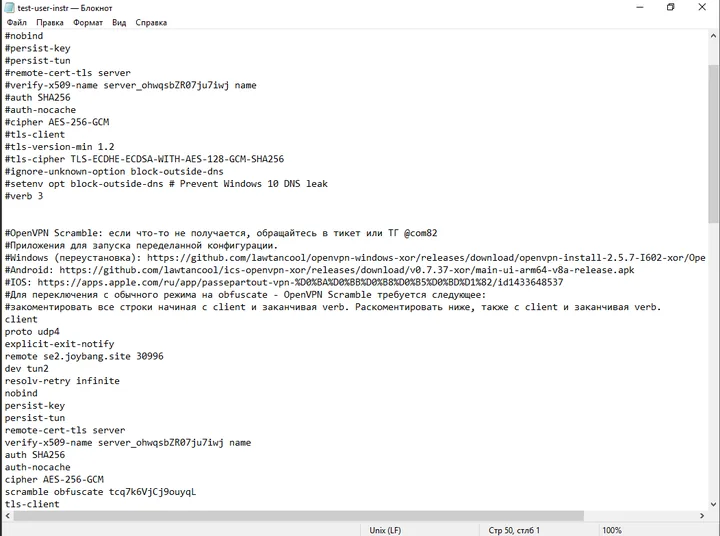
Now open the OpenVPN configuration from our store in Notepad. You'll see the program icon in the system tray at the bottom left and two parts of the configuration. To switch to Scramble, comment out the first part, from "client" to "verb 3" (add a # sign), the same way it is done in the second part. Then uncomment the second part of the configuration accordingly. Don't touch the certificates!
It should look roughly like this.
Save with Ctrl + S. Now open the file with OpenVPN instead of Notepad. Alternatively, click the tray icon and select "Import -> Import configuration file" («Импорт -> Импорт файла конфигурации»), then specify the path to the file. Then click the tray icon again and select Connect («Подключиться»).

Wait a moment and you'll see that the connection was successful (the tray icon will turn green).
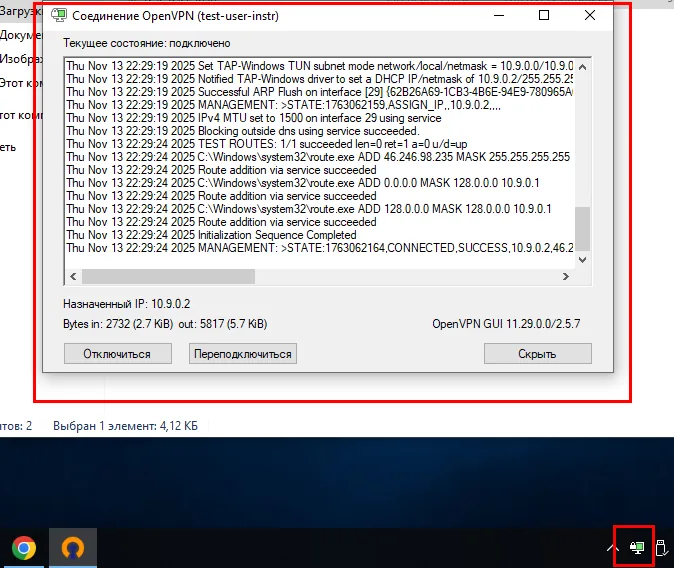
Open your browser and check your IP address.

Keep in mind that OpenVPN Scramble reduces speed by 10% compared to regular OpenVPN. This version of the program also works with regular OpenVPN configurations.
Happy browsing!