Happ for Windows

Happ is a cross-platform client that makes working with proxies and secure connections easy. It lets you route internet traffic flexibly: selected resources go through remote servers, while everything else connects directly.
Key features:
— Built on Xray: uses a modern, fast and secure networking core;
— Support for modern protocols: works with VLESS, VMess, Shadowsocks, Trojan, Socks5 and Hysteria2;
— Flexible routing: lets you create access rules so that blocked or foreign resources go through the proxy server while local websites connect directly (saving traffic and keeping speeds high);
— One-click import: supports loading ready-made configurations and settings via special links;
— Cross-platform: the app is available for Windows, macOS, Linux, mobile devices (iOS, Android) and TV boxes (Android TV, tvOS).
How to connect Happ on Windows
You can download the Happ app here:
https://
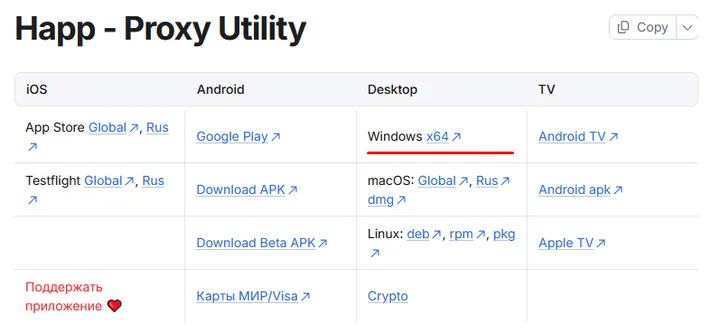
https://
Run the downloaded file and click OK. The screenshots show the installation steps.
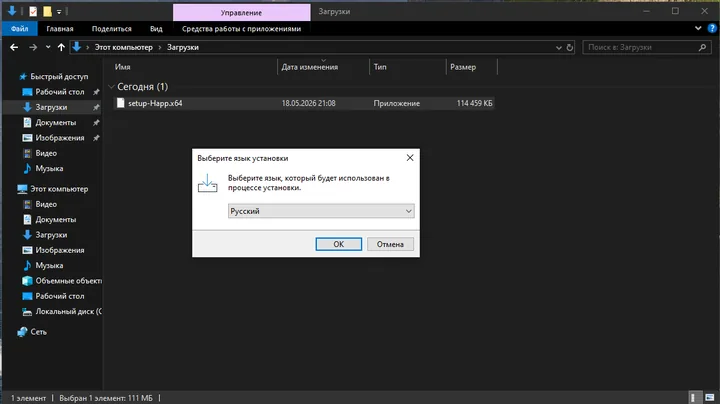
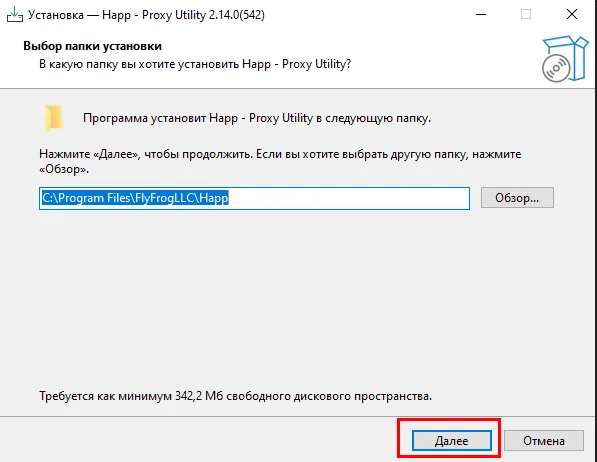
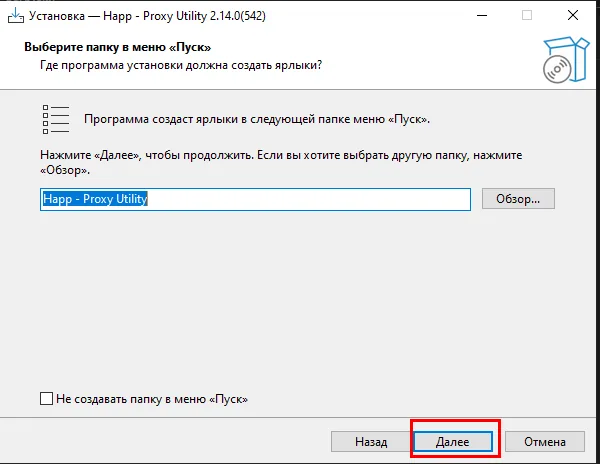
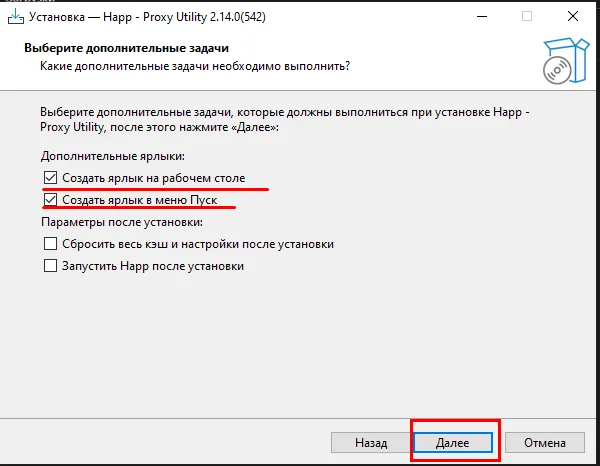
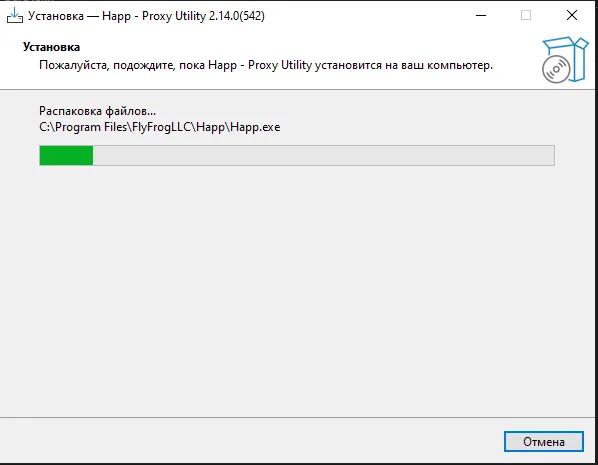
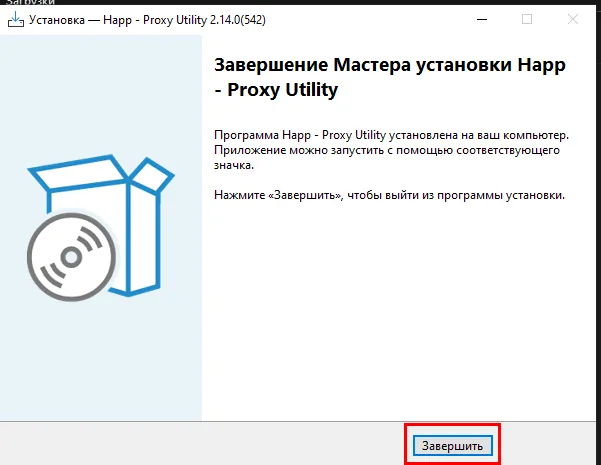
The program window is shown below. It is quite simple and intuitive to use.

After you pay for the selected location, you receive a subscription URL that looks like this:
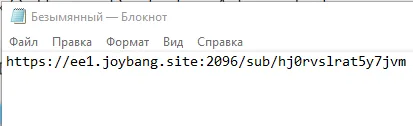
Copy it to the clipboard, paste it into the paste field in the Happ window and click “Let's go” («Поехали»).
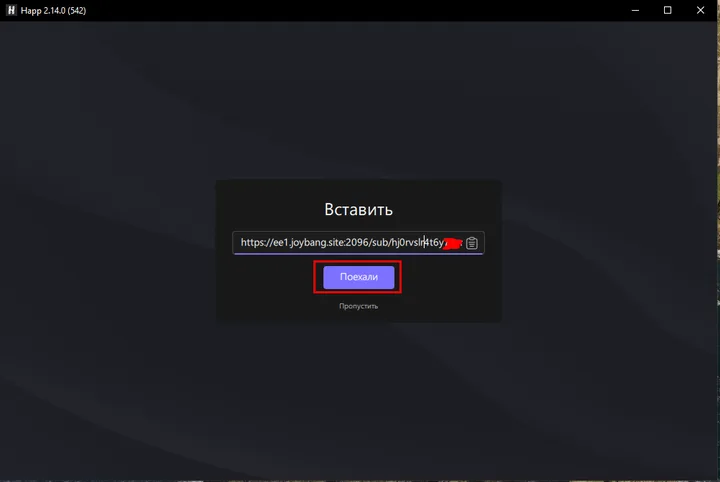
Once the subscription is imported, your profile will appear.
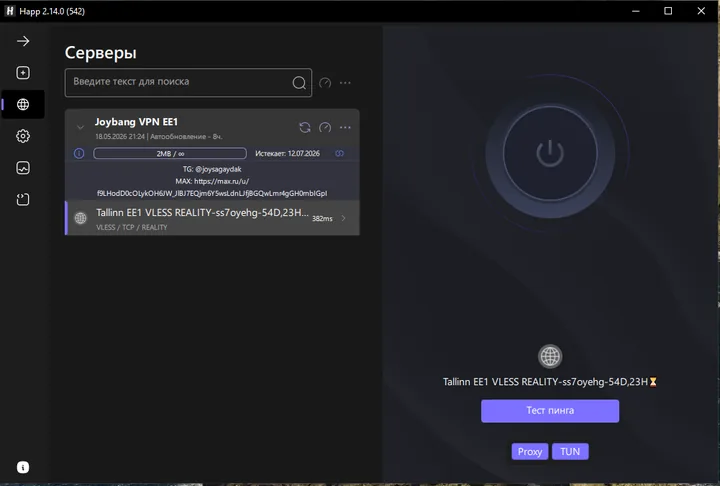
You can run a check by clicking “Ping test” («Тест пинга»). Don't worry about the numbers it shows: they are not the real TCP delay to the server. This check simply confirms that the server is reachable.
To connect to a server, click the following buttons.
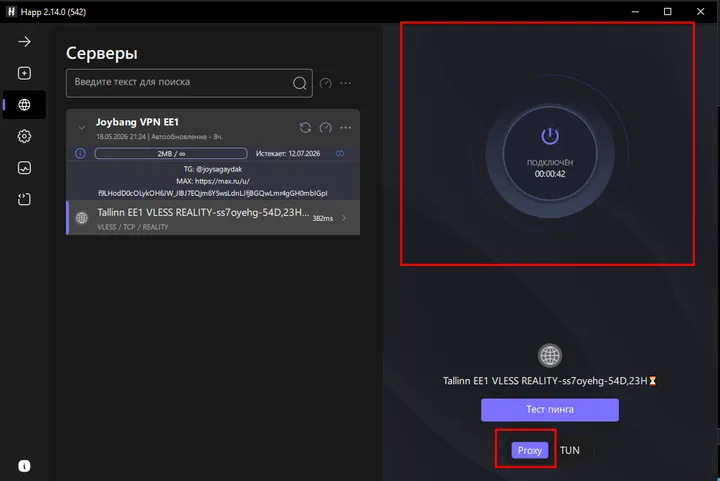
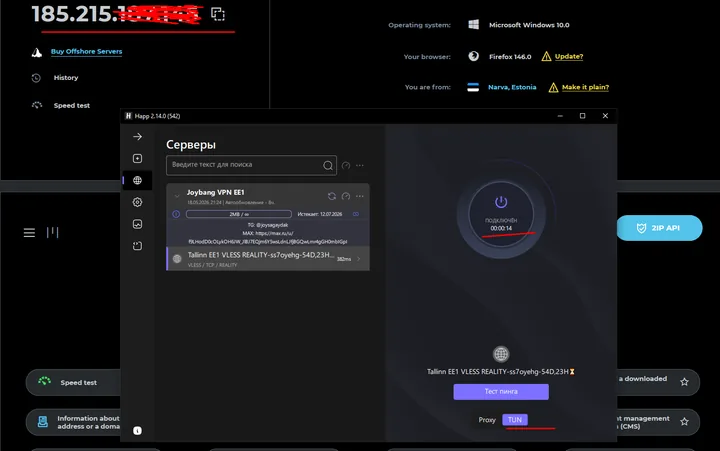
There are two connection modes: TUN and Proxy. TUN mode (via a virtual network adapter) covers all system traffic; system proxy mode covers traffic from the browser and from apps that support the “system proxy” feature, such as the Telegram messenger.
We connected in Proxy mode. Let's check that it works by visiting the well-known https://2ip.ru
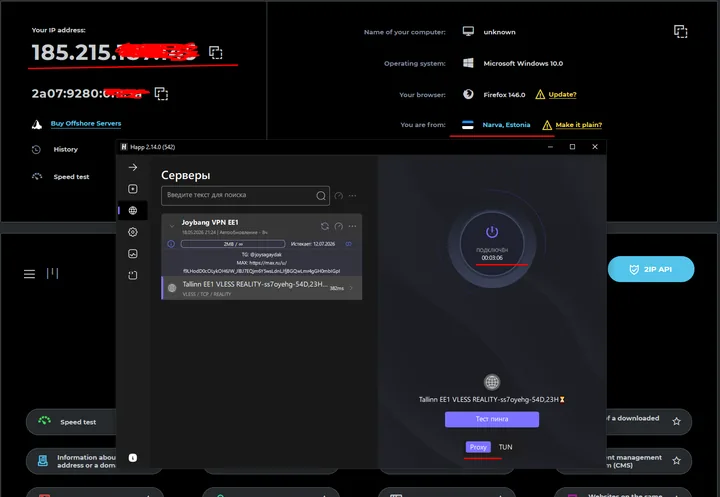
For comparison, here is TUN mode, checked via https://2ip.io
All set! You're ready to go.